
Start seine and it fills the terminal with a live dashboard: how fast you are hashing, how many shares the pool accepted, what you are owed, and a log of everything it does. This tour goes panel by panel through seine v0.2.22, explains what each label means and where its number comes from, and shows what auto-tuning and the keyboard controls look like while you mine.
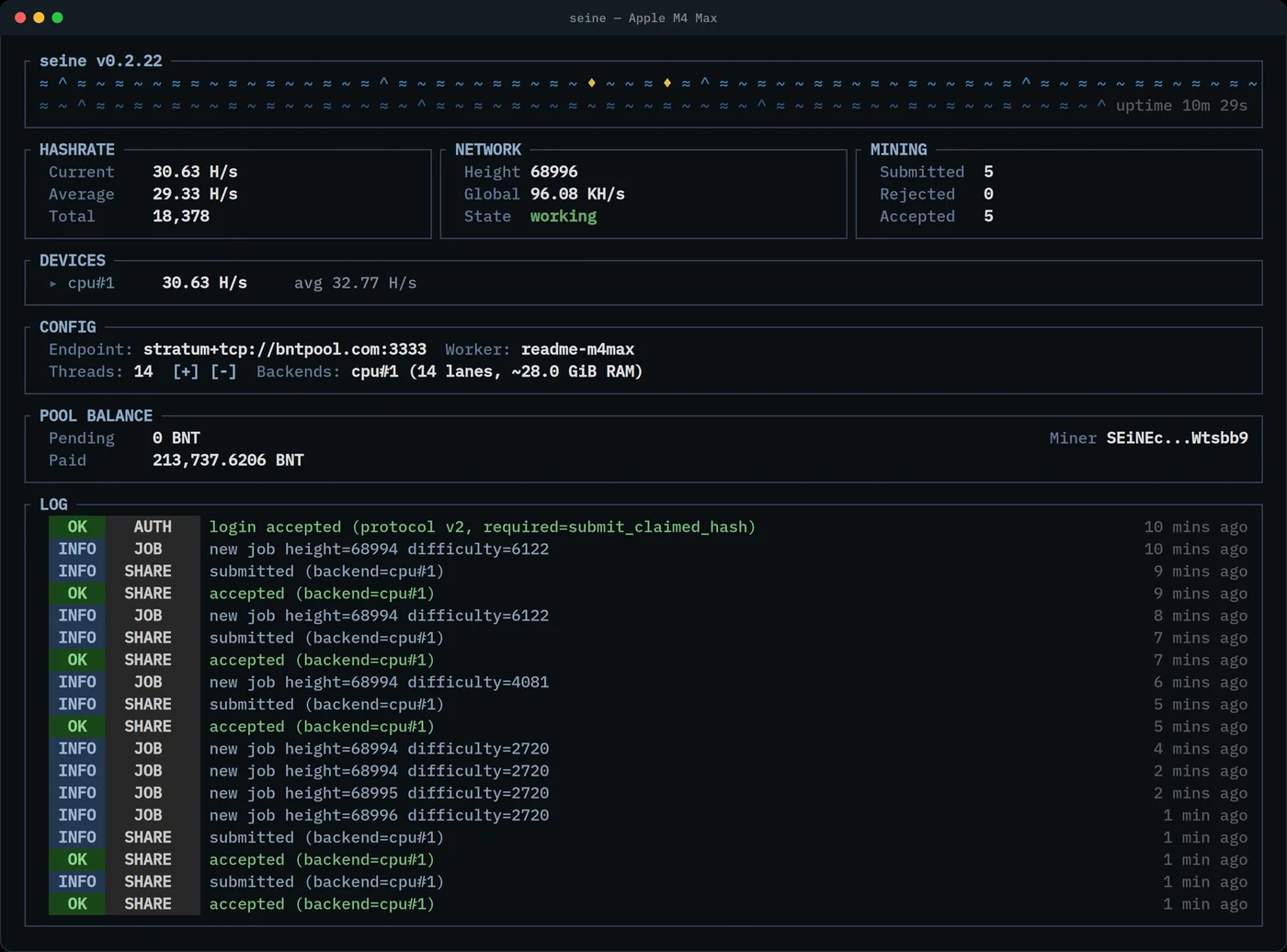
The screenshot is an Apple M4 Max mining on bntpool.com about ten minutes after launch, captured for seine’s README in October 2026. It’s the reference for the rest of this post.
What does seine’s dashboard show?
Seine’s dashboard shows your live and average hashrate, completed hashes, chain height and network hashrate, the miner’s state, shares submitted, rejected and accepted, the hashrate of each device, your pool endpoint and thread count, your bntpool.com balance, and a timestamped log. It refreshes about once a second while you mine.
From top to bottom, the panels are the header, a row of three stat panels (HASHRATE, NETWORK, MINING), DEVICES, CONFIG, POOL BALANCE and LOG. On a terminal at least 148 columns wide, CONFIG and the balance panel sit side by side.
The header: version, waves and uptime
The header’s title shows the seine version, for example seine v0.2.22. When a newer release is out, a highlighted update vX.Y.Z available badge appears next to it and the log gets one line with the download link. Seine checks GitHub at startup and every 12 hours, and the check never interrupts mining.
Under the title, two rows of waves drift past one step per second. Every time the pool accepts one of your shares (or, in solo mode, the node accepts your block), a gold diamond lands on the top row at the right edge and scrolls left one column per second. On a terminal about 130 columns wide, that means the diamonds you can see are the last two minutes or so of accepted work. uptime sits at the end of the bottom row.
How does seine measure hashrate?
The HASHRATE panel has three lines:
- Current is your hashrate over a rolling five-second window. A hash here is one complete 2 GiB Argon2id computation, so H/s counts finished hashes per second. NVIDIA GPUs finish work in bursts, so their current rate uses a 30-second window to stay steady.
- Average is every hash this session divided by the time spent mining. Time spent waiting (for a node to sync, for a wallet password, or after an invalid address) is left out, and the average carries over when you change the thread count.
- Total is the number of hashes completed since you started seine.
In the screenshot, Current reads 30.63 H/s and Average 29.33 H/s. Average starts lower because it includes the first minutes, when every thread is finishing its first hash and the tuner starts below full capacity before working up. The longer seine runs, the closer the two get.
Network and state
The NETWORK panel shows the chain Height you are mining on and the Global network hashrate. In pool mode, seine reads the network hashrate from bntpool.com’s public stats and refreshes it at most every 30 seconds.
State tells you what the miner is doing. Green working is the one you want to see. In pool mode you will also see these during startup and reconnects:
| State | Meaning |
|---|---|
pool-connecting |
Opening the Stratum connection |
pool-connected |
Connected, logging in |
pool-authenticated |
Login accepted, waiting for the first job |
working |
Hashing on the current job |
pool-disconnected |
Connection dropped; seine reconnects on its own |
pool-login-rejected |
The pool refused the login; the AUTH line in the log gives the reason |
Solo mining against your own node adds states such as daemon-syncing, stale-tip (a new block arrived, fetching a fresh template) and solved. While seine is waiting on something, Current drops to zero so it never shows a rate it isn’t producing.
What do Submitted, Rejected and Accepted mean?
The MINING panel counts shares for this session:
- Submitted: shares seine has sent to the pool.
- Rejected: shares the pool did not accept. In solo mode this line is labeled
Staleand counts solutions that reached the node after the chain had moved on. - Accepted: shares the pool credited to you.
bntpool.com adjusts each connection’s share difficulty to aim for about 10 shares every five minutes, so a share every 30 seconds or so is normal, whatever your hashrate. The screenshot’s 5 submitted and 5 accepted after ten minutes is a healthy start. Your payout follows accepted shares, and a Rejected count of zero means every share you sent was credited.
Devices, config and pool balance
DEVICES lists each mining backend with its current and average hashrate: cpu#1 for the CPU, then nvidia#1, nvidia#2 and so on for each NVIDIA GPU. A GPU that is still starting shows its progress instead, from starting CUDA runtime to preparing NVIDIA backend. The first launch compiles and tunes the GPU kernels, so it takes longer than later starts.
CONFIG shows how this run is set up:
- Endpoint is the pool address (
stratum+tcp://bntpool.com:3333by default), or your node’s API address in solo mode. Next to it is the name this rig logs in to the pool with. - Threads is the number of CPU mining threads, followed by the
[+] [-]hint for the keyboard controls. - Backends describes each backend.
cpu#1 (14 lanes, ~28.0 GiB RAM)means 14 threads, each holding a 2 GiB arena, so 14 × 2 GiB = 28 GiB.
To give a rig a recognizable name on the pool, pass it at startup:
./seine --pool-worker rig-01POOL BALANCE reads your balance from bntpool.com every few seconds. Pending is what you have earned and not yet been paid, Paid is what the pool has sent to your address, and Miner on the right is your address shortened to its first and last six characters. bntpool.com pays once your balance reaches 0.1 BNT. In solo mode this panel becomes WALLET, with your node wallet’s Pending and Unlocked balances.
Reading the log
LOG keeps the latest 200 entries, newest at the bottom, each with a level badge, a tag and how long ago it happened. The badges are INFO, OK (something succeeded), WARN, ERR, and ** for a solved block. The tags you will see most on a pool are:
AUTH: the pool login, such aslogin accepted (protocol v2, required=submit_claimed_hash)JOB: a new job from the pool, with its height and difficultySHARE:submitted (backend=cpu#1)and thenaccepted (backend=cpu#1)VARDIFF: the pool changed your share difficultyMINER: auto-tuning decisions
What does auto-tuning look like while seine runs?
Seine starts mining right away and tunes on real mining work, and you can watch it happen in the log. The first MINER line reads cpu-autotune | starting with N threads, followed by initial estimate on a new machine or cached starting point when seine already knows it.
From there it compares settings in turn: the current thread count, a candidate, then the current count again. Each window lasts at least 30 seconds and collects at least 20 hashes. You’ll see lines such as measuring useful mining work and checking baseline again, and the Threads number in CONFIG follows along. When it settles, the log says done and names the thread count it kept.
CPU kernels are compared the same way, for example comparing avx2 and avx512 while mining, and seine switches only after two comparisons confirm the gain: confirmed faster ... path in two comparisons. Choices are cached, so the next start picks up where this one left off. Tuning never reconnects to the pool or restarts a GPU. The autotuning guide covers the details, and the Argon2id explainer explains why memory bandwidth decides where the best thread count lands.
Can you change threads from the dashboard?
Yes. Press + (or =, no Shift needed) to add one thread per CPU backend and - to remove one. Seine restarts its mining backends with the new count while keeping session statistics, uptime and average hashrate. Press q or Ctrl+C to quit. A manual change turns off thread auto-tuning for that run.
While the change applies, CONFIG shows Restarting: 14 -> 15 threads... and further presses are ignored until it finishes. Increases stop at the automatic CPU and RAM cap, and the count you choose is not saved as a new default. For a fixed count from the start, use --threads.
Small terminals and plain output
In a terminal narrower than 80 columns, the three stat panels stack vertically. In a short window, seine switches to a compact view that keeps Threads, State, Current, Average, the share counts and Height on screen above the log. The default --ui auto shows the dashboard only in an interactive terminal; --ui plain gives a plain scrolling log for servers, log files and process managers.
If you haven’t set up seine yet, the guide to mining Blocknet goes from download to your first accepted share.
Frequently asked questions
Why is seine's average hashrate lower than its current hashrate?
Average divides every hash completed this session by the time spent mining, so it includes the first minutes, when each thread is finishing its first hash and the tuner starts below full capacity before working up. Current only looks at the last five seconds. The two move closer the longer seine runs.
How do I change the number of threads while seine is running?
Press the plus key, or the equals key, to add one thread per CPU backend, and the minus key to remove one. Seine restarts its mining backends with the new count and keeps your session statistics, uptime and average. A manual change turns off thread auto-tuning for that run and is not saved as your new default.
What do the gold diamonds in the header mean?
Each diamond marks an accepted share when you mine on a pool, or an accepted block when you mine solo. It appears at the right edge of the wave and drifts one column to the left every second, so the diamonds you can see are the work accepted in the last couple of minutes.
Can I run seine without the dashboard?
Yes. Start it with --ui plain to get a plain, scrolling log instead of the full-screen dashboard. That suits servers, log files and process managers. The default, --ui auto, shows the dashboard only when seine runs in an interactive terminal, so redirected output already gets plain logs.