
This guide takes you from the Windows ZIP download to accepted shares on bntpool.com. You will check the archive, extract the files, enter your payout address, and confirm that your CPU and any supported NVIDIA cards are mining. The commands below use PowerShell and native Windows.
How do you start mining Blocknet on Windows?
Download seine-windows-x86_64.zip, extract the whole archive, and open seine.exe. Enter your Blocknet address or registered @name, then accept stratum+tcp://bntpool.com:3333 as the pool. Seine selects the available CPU and NVIDIA backends, sizes threads to memory, and starts tuning while it mines.
Have your public payout address ready before you open the miner. The wallet guide explains how to obtain one. Enter the receiving address only: the miner does not need your wallet seed or spending keys. A registered Blocknet ID also works, so you can use @name in place of the long address.
Each CPU mining thread uses a 2 GiB memory block. Seine checks the available RAM and core count, keeps memory headroom, and chooses the initial thread count for you. You can begin with the defaults on a desktop or laptop; there is no need to calculate a thread count or choose a CPU kernel first.
Step 1: download and check the Windows archive
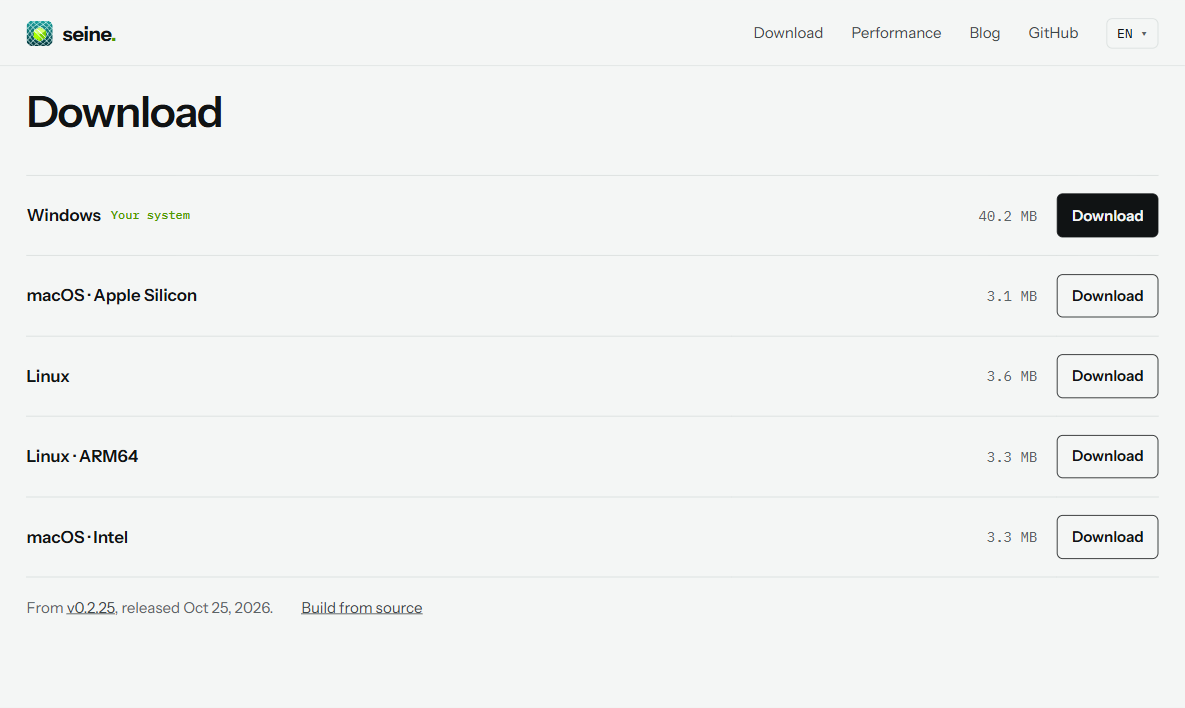
Open the download section and choose Windows x86_64. The archive is named seine-windows-x86_64.zip. Download SHA256SUMS.txt from the same release if you want to verify the ZIP before extracting it. The archive and checksum file must come from the same release version.
In PowerShell, change to your Downloads folder and calculate the archive’s SHA-256 hash:
cd "$HOME\Downloads"
Get-FileHash .\seine-windows-x86_64.zip -Algorithm SHA256
Compare the displayed hash with the entry for that exact ZIP in SHA256SUMS.txt. Letter case does not matter; all the hexadecimal digits must match. Microsoft documents Get-FileHash if you want to check a file saved in another folder. A checksum establishes that the archive matches the published release; download both files from the official release page.
Step 2: extract the complete ZIP
In File Explorer, right-click the downloaded ZIP and choose Extract All. Select a folder you can write to, then open the extracted folder. Keep seine.exe and the accompanying DLLs together: the Windows archive includes the NVIDIA runtime libraries used by the miner.
Double-click seine.exe from the extracted folder. If you prefer a terminal, open PowerShell in that folder and run:
.\seine.exeThe ./ or .\ prefix tells the shell to run the executable in the current directory. Running from an extracted folder also gives seine a consistent place to save its settings. Use that same folder on later starts so it can find the address and pool you entered.
Step 3: enter your address and pool
At the first prompt, paste your Blocknet receiving address or registered @name and confirm it. Accept the default pool URL, stratum+tcp://bntpool.com:3333. Give the rig a recognizable pool name if prompted, so you can distinguish this Windows PC from another machine mining to the same address.
The configuration guide describes these prompts and the saved settings. By default they live in seine-data/seine.config.json relative to the folder you launch from. On subsequent starts, seine reuses them. Shortnames are resolved again when a new run starts.
You can also supply a registered shortname directly in PowerShell:
.\seine.exe --address '@name' --pool-url stratum+tcp://bntpool.com:3333Replace @name with your own registered shortname. Leaving CPU thread and kernel flags unset lets seine choose them automatically. For the general setup across operating systems, see how to mine Blocknet.
How do you know mining is working?
Check that seine’s dashboard shows a hashrate and accepted shares, then look up the same payout address on bntpool.com’s My Stats page. The dashboard describes the miner’s current work; the pool records submitted shares and rewards. Let automatic tuning settle before comparing rates or changing settings.
The dashboard guide explains the hashrate, mining state and pool panels. A running hashrate shows local hashing activity; an accepted share confirms that work has reached the pool. Open My Stats and enter the same address or shortname to follow this rig’s shares and balance.
Keep accepted shares and payments separate when checking a new setup. Shares contribute to pool rewards; a payout follows the pool’s confirmation and balance rules. The PPLNS guide explains that sequence. You can check the connection immediately without waiting for the first payment.
CPU and NVIDIA mining on the same PC
Seine uses the CPU and supported NVIDIA cards together by default. Install a current NVIDIA driver; the Windows ZIP already contains the runtime libraries, so you do not need to install the CUDA Toolkit separately. Leave the extracted DLLs beside the executable when you move the miner’s folder.
On first launch, seine tunes each GPU and remembers its settings. CPU tuning also runs during mining. The hardware guide explains memory sizing and measured results, while the NVIDIA guide covers multiple cards. To stop cleanly, press q in the dashboard or Ctrl+C in the terminal.
Optional: enable Windows large pages
Normal startup already tries large pages and falls back to regular pages. To prepare large pages on Windows Pro, Enterprise or Education, open secpol.msc, go to Local Policies → User Rights Assignment → Lock pages in memory, and add the account that runs seine. Sign out and back in so the new logon session receives the right.
The large-pages guide covers this optional setup in detail. After signing back in, launch seine normally and check its startup log for the selected page mode. Keep the default automatic mode while establishing your first working setup, then compare measurements on the same PC if you change page settings.
Windows blocked your miner? Verify the download
Frequently asked questions
Do I need the CUDA Toolkit to mine Blocknet on Windows?
No. The Windows release ZIP includes the NVIDIA runtime libraries seine needs. Install a current NVIDIA driver and keep the extracted files together. Seine detects supported NVIDIA cards alongside the CPU and tunes them automatically. CPU mining also works on machines without an NVIDIA card.
Where does seine save my Windows mining settings?
By default, seine saves the payout address, pool and rig name in seine-data/seine.config.json beneath the folder you launch it from. Run it from the same extracted folder to reuse those settings. The data-dir option lets you choose a different directory when you need one.
Do I need Windows large pages before I start mining?
No. Seine tries large pages automatically and uses regular pages when they are unavailable. You can start mining with the default settings. For an optional large-page setup, grant your mining account Lock pages in memory, then sign out and back in before restarting seine.