
Seine mines Blocknet on your NVIDIA GPU alongside the CPU. This guide covers Windows and Linux setup, card selection, accepted shares and a measured RTX 5090 comparison. The commands describe seine v0.2.26 and the current Argon2id network as of October 2026.
How do you start mining Blocknet with an NVIDIA GPU?
Download the Windows x86_64 or Linux x86_64 seine archive, prepare the NVIDIA driver and runtime libraries for your platform, and run the miner. Enter your payout address and accept the default pool. Seine selects the CPU and detected NVIDIA cards automatically, then prepares and tunes each GPU backend.
Choose your archive in the download section: seine-windows-x86_64.zip for Windows or seine-linux-x86_64.tar.gz for Linux x86_64. The general mining guide covers getting a payout address and making your first connection.
Start with the defaults. Leave the kernel, register cap, GPU lane count and CPU thread count unset so seine can choose its configuration. The Devices panel shows which backends are contributing once initialization finishes.
Set up the NVIDIA runtime on Windows or Linux
| Platform | What to prepare | Start command |
|---|---|---|
| Windows x86_64 | NVIDIA display driver; bundled runtime DLLs beside the executable | .\seine.exe |
| Linux x86_64 | NVIDIA driver and compatible NVRTC runtime libraries | ./seine |
On Windows, extract the complete ZIP into a writable folder. Keep nvrtc64_120_0.dll and nvrtc-builtins64_128.dll beside seine.exe. The packaged release uses these bundled libraries; a separate CUDA Toolkit installation is not required.
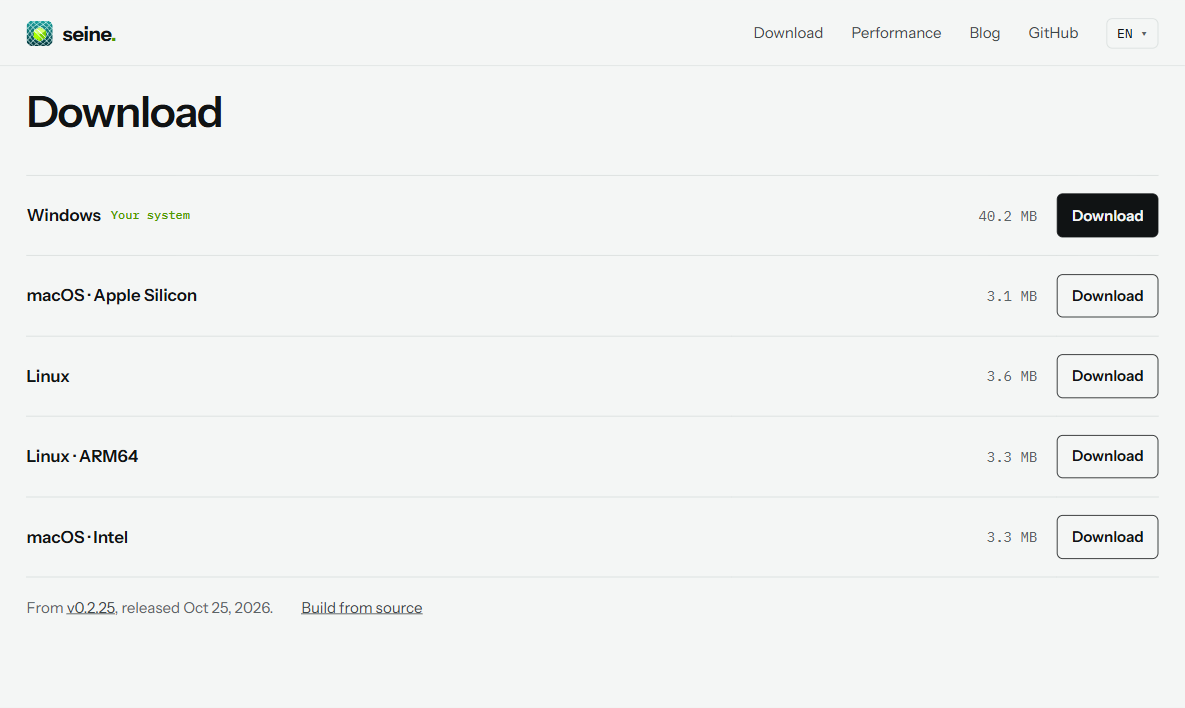
Install the driver for your card and operating system from NVIDIA’s driver page. The Windows setup guide walks through the download, checksum and extraction.
On Linux, install the NVIDIA driver and compatible NVRTC packages for your distribution. NVRTC compiles seine’s CUDA kernels at runtime. NVIDIA’s NVRTC documentation describes the compiler and matching builtins library; the seine NVIDIA requirements document the miner’s runtime expectations.
Launch the binary from its folder. Reuse the same working directory to keep your saved settings in seine-data. On a first launch, enter your receiving address and accept stratum+tcp://bntpool.com:3333 for the pool.
Can you select one NVIDIA card and keep CPU mining?
Select both backends and the device index. In PowerShell, this keeps CPU mining and selects NVIDIA device 0:
.\seine.exe --backend cpu,nvidia --nvidia-devices 0Use the same options with the Linux executable:
./seine --backend cpu,nvidia --nvidia-devices 0These commands use your saved address and pool or ask for them at startup. To supply the connection explicitly, add your public receiving address with --address and the pool URL with --pool-url.
The index identifies a GPU enumerated by the NVIDIA runtime. Confirm the device list after startup. --nvidia-devices 0,1 selects those two cards; omitting the selector uses all detected NVIDIA devices.
For GPU-only mining, select nvidia:
./seine --backend nvidiaIn PowerShell, use .\seine.exe --backend nvidia. Include cpu in the backend list when you want both types of hardware. Restart seine with the desired command when changing that selection.
How do you confirm the GPU is mining?
Look at the Devices panel for NVIDIA backend rows and their current and average hashrates. During initialization, a row can show startup progress while CUDA kernels are prepared. Once hashing begins, check the log for share events from that backend and the Mining panel for accepted shares.
NVIDIA backends appear as nvidia#1, nvidia#2 and so on; the CPU has its own row. The overall hashrate includes all active backends. The dashboard guide explains the remaining panels and log labels.
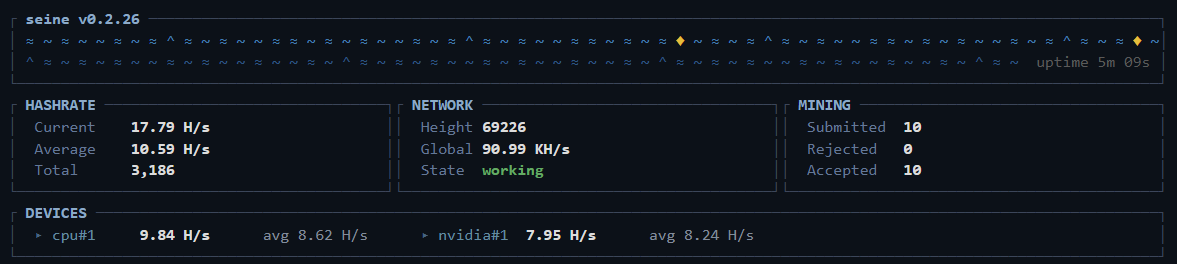
This capture shows a live pool session on the RTX 5090. The timed benchmarks below were run separately. A device hashrate measures local activity; an accepted share confirms the pool credited submitted work. Follow credited work with the miner tracking guide.
The first launch prepares and tunes the GPU kernels. Seine saves NVIDIA autotune results in seine-data/seine.nvidia-autotune.json. Reuse that data directory so later launches can load compatible saved results, or select a directory explicitly with --data-dir.
How fast was the RTX 5090 in our test?
We tested on October 25, 2026, using Windows 11, an NVIDIA GeForce RTX 5090, an AMD Ryzen 9 9950X3D, 125.4 GiB of usable RAM, seine v0.2.26 and NVIDIA driver 610.88. We ran three interleaved pairs with --bench-kind backend. Each run used one 20-second warmup and three 20-second measured rounds, with 20 seconds between runs. Kernel, register-cap, lane and thread settings were automatic.
| Mode | Mean H/s |
|---|---|
| RTX 5090 only | 7.3 |
| RTX 5090 + Ryzen 9 9950X3D | 12.9 |
The table averages three runs per mode on this desktop with its existing apps open. Both modes used GPU 0 and the same NVIDIA autotune cache. These are local benchmark rates; accepted shares confirm pool credit. The measurement notes record the settings and individual results.
What should you check if an NVIDIA row is missing?
Check the extracted executable and runtime libraries first. On Windows, keep the bundled NVRTC DLLs beside seine.exe. On Linux, install the driver and NVRTC libraries in the environment where you launch the miner.
Then check your command. --backend cpu selects only the CPU. Use the default command or --backend cpu,nvidia for both. If you set --nvidia-devices, verify the indices exist on your machine.
Read the startup log for that backend: it distinguishes ongoing preparation from an initialization error. Correct the reported runtime or selection issue and restart. The NVIDIA guide also covers source-build requirements.
For the current Argon2id workload, each active GPU lane needs a 2 GiB arena plus runtime overhead. Seine sizes GPU work using available device memory and allocation checks. Leave lane overrides unset; advertised VRAM alone does not determine how many lanes are available during a desktop session.
If the device is hashing but the pool shows zero, follow the pool hashrate checklist for address, connection and accepted-share checks.
Windows blocked your miner? Verify the download
Frequently asked questions
Can seine use the CPU and NVIDIA GPU together?
Yes. Seine selects the CPU and detected NVIDIA GPUs automatically when you leave the backend option unset. Its Devices panel shows each backend separately. To choose a particular card while retaining CPU mining, select both cpu and nvidia and then specify the NVIDIA device index.
Do I need the CUDA Toolkit on Windows?
The official Windows archive includes the NVRTC runtime libraries that seine uses to compile its GPU kernels. Install a compatible NVIDIA display driver and keep the extracted DLLs beside seine.exe. A separate CUDA Toolkit installation is not needed for that packaged Windows release.
How do I mine on an NVIDIA GPU without using the CPU?
Start seine with the backend option set to nvidia. It creates an NVIDIA backend for each detected card. Add the nvidia-devices option to select particular device indices. Check the Devices panel after startup to confirm that the intended GPUs are present and hashing.
Where can I see whether my GPU shares are accepted?
The mining dashboard shows submitted, rejected and accepted shares, and its log identifies the backend for share events. Check the NVIDIA device row for its local hashrate, then look for accepted share messages from that backend. Use the pool tracking guide to check credited work.