
If Windows blocks a seine download or an extracted file disappears, start by identifying the exact file and warning. This guide shows how to check the official release, compare its SHA-256 checksum and gather useful details for a report. The worked example uses seine v0.2.26, checked on October 25, 2026.
What should you check when Windows blocks a miner?
Record the warning text, affected filename and release version before changing anything. Open Windows Security and review Protection history for a detection entry. Then obtain the archive and checksum from the official seine release. Match the exact file and version before deciding how to handle the alert.
Expand the relevant entry in Protection history to read its details. Windows may require administrator permission to view threat details. Note whether the affected item is the downloaded ZIP, seine.exe or a DLL. A missing executable and a browser download warning can occur at different stages, so keep the filename with the message.
Is it a SmartScreen warning or an antivirus detection?
SmartScreen evaluates downloaded applications using reputation signals, including the file and publisher. An unfamiliar-app prompt is different from a named antivirus detection. Write down the actual message; the word miner in a filename does not tell you which check intervened or establish the reason for the block.
Microsoft also lists cryptocurrency mining software in its potentially unwanted application criteria, specifically for enterprise environments. On a managed work or school computer, ask the administrator about the applicable policy. This describes a software category, not a verdict about your particular download. Resolve the exact alert rather than assuming every miner warning is a false positive.
Get the ZIP and checksum from the same release
Open the official seine releases through the download page. Confirm the repository is zpalmtree/seine. Choose seine-windows-x86_64.zip and the separate SHA256SUMS.txt asset from one release. Keep the version in your notes. A checksum from a newer or older release is not the reference for the archive you downloaded.
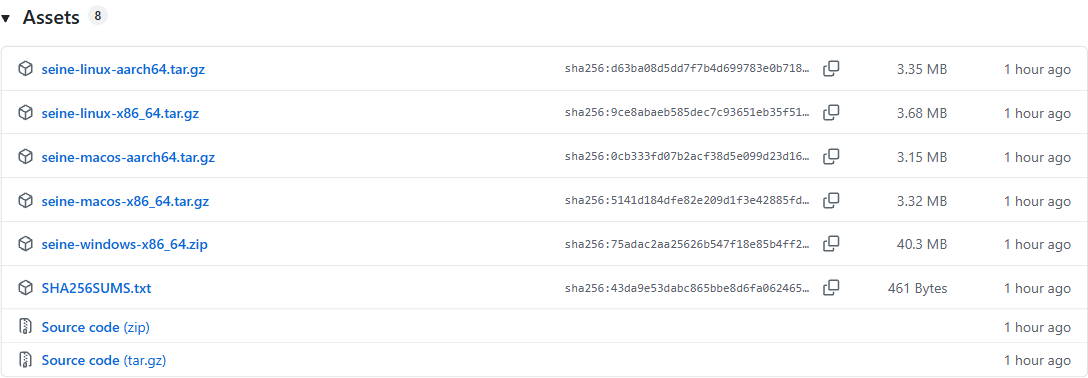
This is a real capture of the v0.2.26 asset list. The release-level checksum file covers the downloadable archives. Another file named SHA256SUMS.txt is inside the ZIP and covers the extracted files. For this first check, use the separately downloaded release asset. Avoid mixing those two lists even though their names are identical.
Use the official archive directly. A renamed executable, third-party repack or file sent in a chat is not verified by comparing the official ZIP’s checksum. Save the ZIP and release checksum together in a folder you can find, and run the commands below from that folder.
How do you compare the SHA-256 checksum?
Open PowerShell in the folder containing both downloaded files. Get-FileHash calculates the archive’s SHA-256 value. This comparison selects the entry for the exact Windows archive name, requires a single matching entry, and stops with an error if the calculated hash differs. It reads the files without running the miner or changing Windows protection settings.
$archive = '.\seine-windows-x86_64.zip'
$actual = (Get-FileHash $archive -Algorithm SHA256).Hash
$entries = @(Get-Content .\SHA256SUMS.txt | Where-Object { $_ -match '^([0-9a-fA-F]{64})\s+\*?seine-windows-x86_64\.zip$' })
if ($entries.Count -ne 1) { throw 'Expected exactly one Windows ZIP checksum entry.' }
$expected = ($entries[0] -split '\s+')[0]
if ($actual -ne $expected) { throw 'Checksum mismatch. Do not run this download.' }
'PASS: ZIP matches SHA256SUMS.txt'
The success message is PASS: ZIP matches SHA256SUMS.txt. A missing file means you should check your current folder and the filenames. An absent or duplicate checksum entry means you should obtain the original checksum asset again. On a mismatch, stop: confirm the release version and download the official archive and checksum again before repeating the comparison.
What did the verified example show?
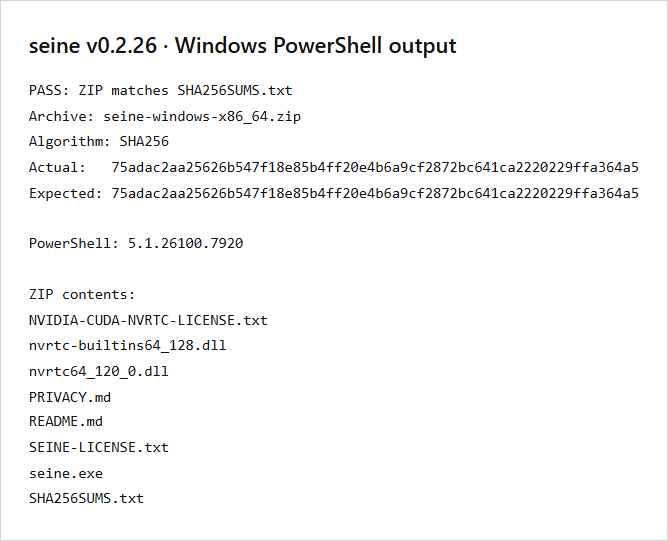
We ran this comparison in Windows PowerShell 5.1 against the official v0.2.26 Windows ZIP. The calculated hash matched its release checksum. The image below displays the actual command output; it is a rendered transcript, not a Windows Security notification. The text record preserves the complete hash and the archive’s file list.
A hash comparison answers whether these bytes match the supplied reference. It does not authenticate a checksum obtained from an unrelated source, prove the absence of malware or explain a specific detection. If your alert refers to an extracted executable, record that file’s name and detection separately; the ZIP hash is the archive’s identity.
What if the verified download is still blocked?
Keep the affected item quarantined while an unresolved detection is investigated. Prepare the release version, download URL, affected filename, SHA-256 value and exact warning text. Add the Windows version and say whether the block happened during download, extraction or launch. These details make a report reproducible without exposing your personal configuration.
Use the seine issue tracker for a project report and Microsoft’s file submission portal for a suspected incorrect detection. Review any attachment before sending it. Share the public release file or its identifiers when requested, not your mining data folder. Remove personal paths, wallet details and authentication tokens from screenshots.
Windows offers item-specific actions for some detections. Consider allowing an item only after its source and the detection have been resolved and you trust that exact file; follow the instructions for the recorded alert. Leave system-wide protection enabled. On a managed device, the administrator determines what is permitted.
Continue with the verified Windows archive
Once the file is cleared for use, extract the complete ZIP into a writable folder and keep the bundled DLLs beside seine.exe. The Windows mining walkthrough covers the first launch and payout-address prompt. For driver, runtime or device-selection questions, continue with the NVIDIA setup guide. Those are separate checks from download verification.
Frequently asked questions
Does a matching SHA-256 hash prove a miner is safe?
A matching hash establishes that your downloaded file matches the checksum you compared it with. Obtain both from the official release. This checks file integrity; it does not replace reviewing an antivirus detection or independently establish that software is safe to run.
Which checksum file should I use for the Windows ZIP?
Use the SHA256SUMS.txt asset attached to the same release as seine-windows-x86_64.zip. That file lists archive checksums. A second SHA256SUMS.txt is inside the extracted ZIP and describes its contents. Compare the archive against the release asset, keeping versions together.
What should I include when reporting a blocked download?
Include the seine release version, official download URL, filename, SHA-256 hash, Windows version and exact detection name or warning text. Say whether the ZIP or an extracted file was affected. Redact personal paths and keep wallet seeds, private keys and API tokens out of screenshots.