
Watch incoming Blocknet payments on a second computer while keeping payment authorization in your full wallet. This guide uses the official CLI v1.2.0 and public core v0.22.0, checked on October 27, 2026. It follows the exported-file workflow, explains which access that file grants, and shows how to verify the receiving records after loading it.
How do you create a view-only Blocknet wallet?
Open the full wallet and use its viewkeys command to create an encrypted viewing file with a separate password. Transfer that exported file to the intended computer, load it there and verify its address and view-only type. Let its wallet scan catch up, then use it to inspect incoming payments while keeping spending in the full wallet.
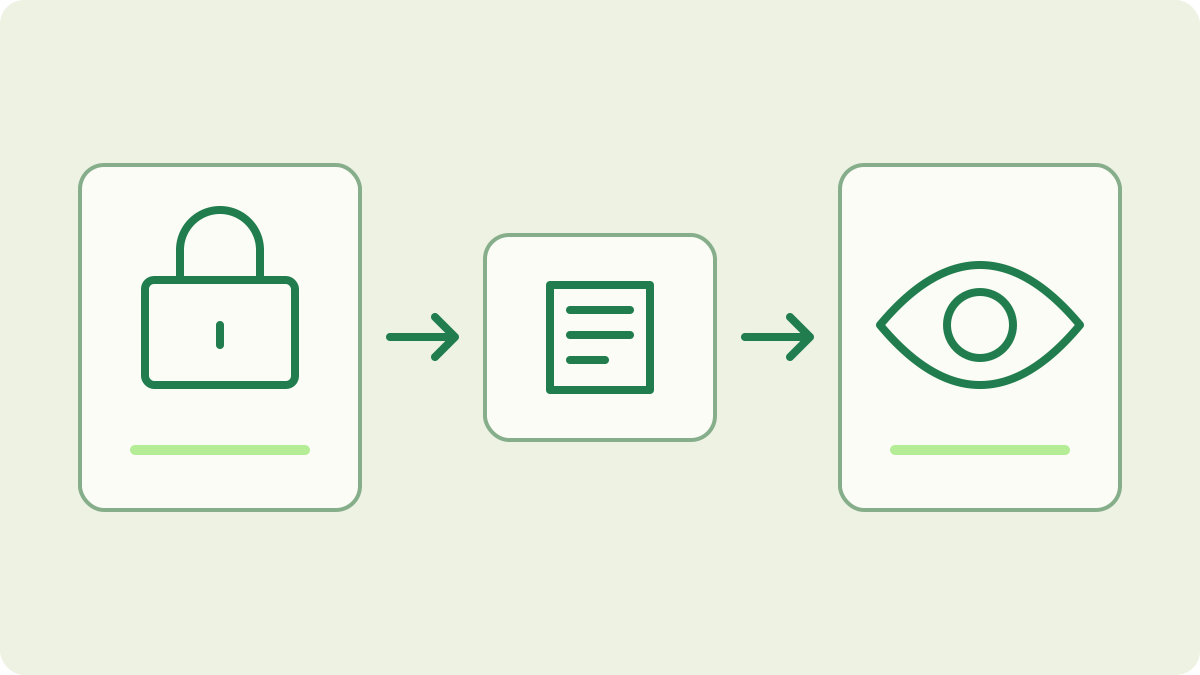
Choose the receiving records you want to monitor
Start from the full wallet whose incoming funds you want to watch. The wallet setup guide covers creating or restoring it. A viewing copy corresponds to that wallet’s address; it does not create a separate receiving identity or move coins to a new account. Write down which wallet and network the copy is for before handling any exported file.
For mining, you can keep using the same verified payout address. The viewing wallet helps you inspect incoming wallet records on another trusted computer. The pool tracking guide serves a different task: it shows shares, pool balance and payout activity without wallet keys. Choose the interface that answers your question; viewing access is useful when you need the private receiving record.
Export the viewing file from the full wallet
On the computer with the full wallet, attach to its running mainnet core:
blocknet attach mainnetOpen the intended wallet and check its address using these shell commands:
load
address
If the wallet is locked, use its normal unlock prompt. Keep this session private because the next operation displays viewing key material.
Start the export:
viewkeysThe reviewed client explains that the view private key reveals incoming funds and asks you to continue. Proceed only when you intend to grant that access. It then asks for the full wallet password, a new password for the view-only file, and confirmation of the new password. Choose and retain the file password for the receiving computer.
Which file should you transfer?
After a successful export, the client displays the viewing keys and the saved file’s path. Use that actual saved path to identify the exported viewing file. Transfer it through a method appropriate for private wallet data to the computer you control. Keep the file password protected separately. Avoid including the terminal’s key output in screenshots or troubleshooting transcripts.
The wallet reference describes the default wallet folder as ~/.config/bnt/wallets/, with C:\Users\<you>\.config\bnt\wallets\ as its Windows equivalent. A configured wallet path can change which folder load lists. Copy the exported file into the destination’s wallet folder so the client can find it. Keep the original full wallet and its recovery backup on their intended storage.
Load and verify the copy on the second computer
Prepare a running core on the destination with the node guide, then attach to the same network. Open the exported file with the password chosen for that file:
loadIf another wallet is already open, the official shell supports unloading it before loading the desired file. Select by the exported filename rather than assuming the first listed wallet is correct.
Verify the copy through the client:
address
status
Compare the complete receiving address with the full wallet’s address. Check the view-only type displayed by the client. These checks confirm both identity and intended access. You do not need to attempt a send to test the distinction: the reviewed core rejects sending and message signing from a view-only wallet.
Let the viewing wallet find incoming payments
The destination node needs the relevant blocks, and the loaded wallet needs to scan them. Use these shell commands to inspect the wallet’s records:
outputs
history
A newly loaded or imported wallet can still be catching up even when its node has peers. Follow the wallet-sync guide to distinguish chain download from wallet scanning and decide whether a scan is needed.
Match an incoming record to a transaction ID you already have from the full wallet or payout record. The explorer guide can confirm public inclusion, while the viewing wallet supplies its incoming payment details. Use the full wallet for current spending decisions and authorization. Treat the viewing copy as an incoming-payment monitor rather than assuming it mirrors every outgoing record or spendable-balance decision.
What access does a view private key grant?
The official shell reference warns that a view private key lets its holder see incoming funds. An encrypted viewing file protects that access with its own password, but opening it still reveals private payment information. Grant access only to the intended person or machine. Changing the file password does not revoke a view key that someone has already copied.
Keep both spending and viewing secrets out of public tools and support messages. A receiving address is meant to be shared for payment; a view private key has a different purpose. The stealth-address guide explains how the wallet recognizes its outputs. For this setup, the practical rule is to transfer only the viewing access you intend and keep recovery material with the full wallet.
Keep a repeatable viewing routine
When you return to the monitoring computer, load the same viewing file, verify the network and address, and check progress before interpreting a missing entry. Preserve the distinction between an incoming record and funds you can authorize spending. If the original wallet has a new address because you created a different wallet, its existing viewing copy will still correspond to the old one.
Keep the full wallet’s recovery backup even after the viewing setup works. A viewing copy cannot replace the spending material needed for recovery. The seed guide explains that backup, while sending and receiving covers the payment workflow. Together, the full wallet, its backup and the viewing copy each have a clear job in your routine.
Frequently asked questions
Can a view-only Blocknet wallet send coins?
A view-only wallet can watch incoming funds, but it cannot send payments or sign messages. The reviewed core rejects those operations for that wallet type. Keep the full wallet for spending decisions and payment authorization, and use the viewing copy for the incoming records you intend to monitor.
Is it safe to publish my Blocknet view private key?
The view private key gives access to incoming payment information. It is private data even though it does not supply spending authority. Share viewing access only deliberately, keep exported files and passwords protected, and leave keys out of public screenshots, support posts, chat messages and explorer proof forms.
Does a view-only wallet need the main wallet’s password?
The export workflow asks for the full wallet’s password to authorize creation, then asks you to choose a separate password for the viewing file. Load that exported file on the second computer with the file password you chose. The second computer does not need the full wallet’s recovery seed or spending credentials.