
Back up your Blocknet wallet before changing computers, then restore the same address using either its wallet file or its recovery seed. This guide follows official CLI v1.2.0 and core v0.22.0, checked on October 27, 2026. It separates making a backup, opening it elsewhere and verifying that recovery is complete.
How do you back up and restore a Blocknet wallet?
Keep your recovery seed offline and a separate copy of the full wallet file. On the destination computer, load that file with its password or import the original seed into a new wallet file. Compare the complete receiving address, let the node and wallet scan catch up, and verify your records before retiring the old copy.
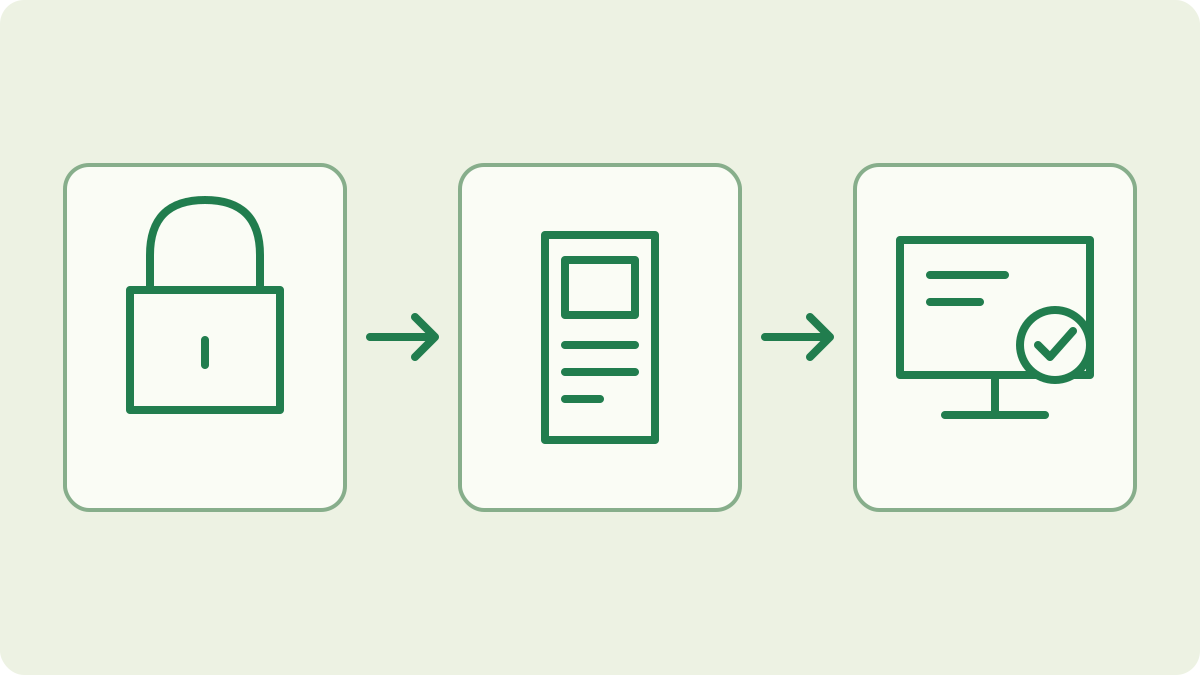
Choose the recovery path you actually have
A wallet-file backup and a recovery seed serve different purposes. The .wallet.dat file carries wallet keys and stored wallet state; opening a password-protected copy requires its password. The seed can recreate a seed-based wallet’s keys in a fresh file with a new password. Keep both when available, and retain private payment records separately so you can compare them after recovery.
This procedure concerns an existing full wallet. For initial creation, follow the wallet setup guide. For watching payments on a second computer without spending access, use the view-only guide. A public receiving address by itself cannot restore a wallet. Identify whether you have the full file, its password and the original seed before choosing the steps below.
Prepare the original wallet and your recovery record
Attach to your running mainnet core from a terminal:
blocknet attach mainnetInside the interactive shell, load the intended wallet and record its full public address:
load
address
Use the existing wallet’s menu entry. If another wallet is loaded, use unload before selecting the intended one. Keep the address in your private migration notes, along with the network and wallet filename.
For a seed-based wallet, run seed inside the shell, confirm the prompt and enter the wallet password. Write the returned words in their exact order and store them offline. Do this away from screen sharing or recording; the seed guide explains how to protect that record. If the client reports that no seed is available, preserve the full file and its password and use the file-copy path. Do not assume every older or key-imported wallet has a seed.
Make a separate copy of the wallet file
Locate the actual file used by the core. The default wallet directory is ~/.config/bnt/wallets/; on Windows it is C:\Users\<you>\.config\bnt\wallets\. The folder containing the configured wallet_file can differ. Use the path shown by the official client and the wallet-management reference, especially when several files have similar names. Confirm the intended file before copying anything.
After recording the address, run unload and wait for success before copying the file. Keep the original in place and save a dated copy on separate storage you control. Preserve its .wallet.dat extension and protect the backup and password. The client can create a local backup when loading from a different directory, but it does not overwrite an existing same-name backup. Check your own saved copy rather than assuming that local copy is current.
How do you move the wallet to a new computer?
Install the official client and prepare a mainnet core using the node guide. Transfer a copy of the full wallet file through storage you control into the destination core’s wallet folder. Preserve any unrelated file already there; choose a distinct filename if necessary. In the reviewed client, load reads from that wallet folder, including when a custom path is entered.
Attach on the destination and run load, select the copied file and enter its existing password. If the file is absent from the menu, confirm which folder the destination core uses and where you copied it. Choose the existing file rather than the option to create a new wallet. Copying the same file restores access to the same keys; it does not send coins or create a second balance.
Restore from the original recovery seed
If you are recovering from a lost file or forgotten password, use the saved seed in the official client on your trusted destination computer. Attach to the intended mainnet core and unload any other wallet first. Start the recovery prompt inside the interactive shell:
importSelect option 1 for the 12-word recovery seed. Enter your own original words in order; never use example words from a guide or paste the seed into a website.
Choose a new, unused wallet name and set and confirm a new password when prompted. The reviewed import implementation creates a wallet from those recovery inputs and reports its address. The original encrypted file retains its old password. Keep the old file and backup while checking the imported wallet, and treat the newly created file as another copy that needs protection.
Check the address, chain and wallet scan
After loading or importing, inspect the destination wallet:
address
status
balance
history
Compare the entire address with the record you saved earlier. The address check identifies the wallet before you rely on its displayed balance. If it differs, stop the migration and recheck the selected file, recovery words and network. Keep your original backup intact while resolving the difference.
Allow both the node’s chain download and the wallet’s output scan to catch up. A newly imported wallet needs to find its outputs on the chain; an early balance is not the final recovery check. Compare available balance and incoming records once scanning completes. Preserve your separate payment notes and original file for historical details. The wallet sync guide explains which progress readings to inspect and when a rescan is appropriate.
Finish the move after verification
Keep a protected backup of the verified destination wallet and retain the offline seed. Record which computer now holds the active full wallet and which copies are backups. Keeping an old copy gives that copy the same key access; moving a file does not revoke it. When retiring a device, handle its storage according to your normal secure disposal process after confirming the working backup.
If the restored address matches, your existing mining payout destination can stay the same. Check the pool payout record against your wallet’s incoming history when verifying mining receipts. If you deliberately create a different wallet instead, that is an address change rather than a restoration. Finish verifying the restored wallet before making separate changes to your miner configuration.
Frequently asked questions
Can I recover a Blocknet wallet if I forget its password?
For a seed-based wallet, use your saved recovery seed to import the wallet under a new name and set a new password. The old encrypted file keeps its existing password. Compare the restored address with your records and let the node and wallet scan catch up before checking the balance.
Does moving my Blocknet wallet change its receiving address?
Loading a copy of the same wallet file or correctly importing its original recovery seed preserves the wallet’s address. Compare the full address on the destination with a trusted earlier record. Creating a brand-new wallet is a different operation and gives you a new address to use for future payments.
Is a view-only wallet enough to restore spending access?
A view-only wallet provides viewing access, so it is suitable for watching incoming payments on another computer. To restore spending access, use your full wallet file with its password or the full wallet’s recovery material. Keep the original full-wallet backup and verify which kind of wallet you loaded.