
Set Windows to launch your working seine setup when you sign in. This guide uses Task Scheduler, keeps the miner in your user session and gives you a clear off switch. First complete the Windows mining setup and confirm that the pool accepts shares. Automating a command that already works makes the result straightforward to check.
How do you start a Blocknet miner automatically?
Create a Task Scheduler task for your Windows account, trigger it at sign-in and point its action to the extracted seine executable. Give it the existing data folder and working directory, prevent another instance of the same task, then verify accepted shares after a test launch.
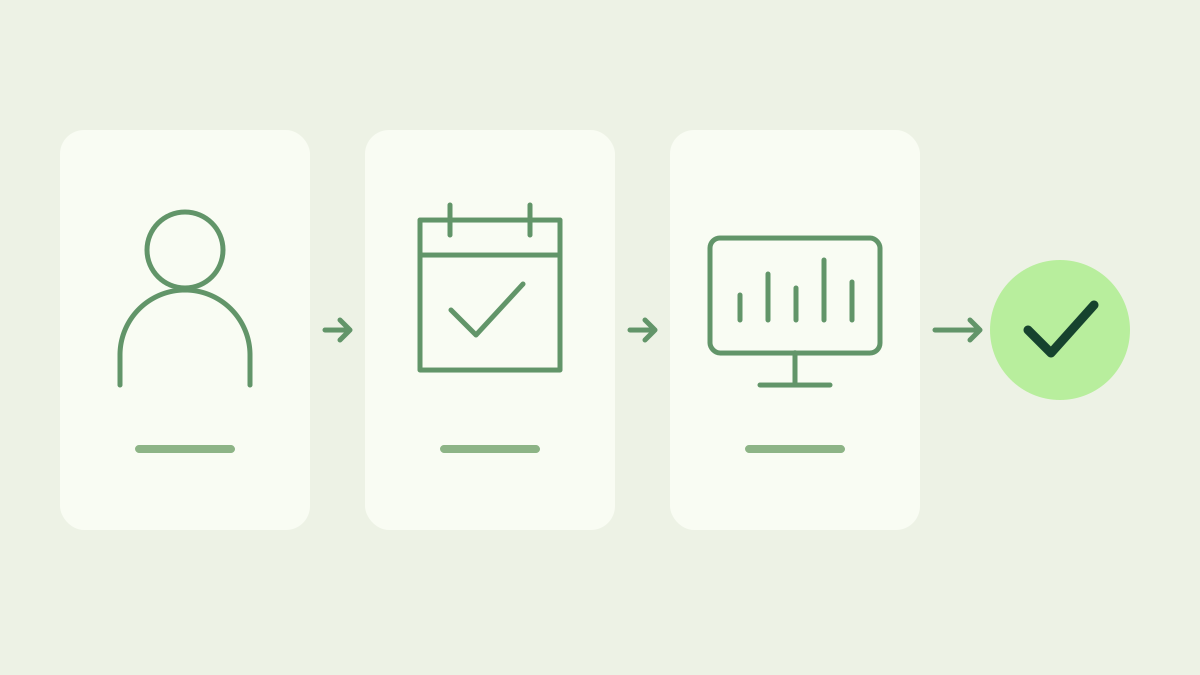
Which files and settings should you keep?
Choose a stable folder for the extracted release. Keep the full archive contents together, including any bundled libraries; point the task at the executable inside that folder. Locate the data folder your successful manual run uses. By default, seine uses ./seine-data relative to its working directory, and saves connection settings in seine.config.json there. A different starting folder can make the miner look for a different configuration.
The examples below use C:\Users\YOUR_USER\Apps\seine; replace that entire path with your actual installation folder. Keep your existing data folder wherever it already lives. Save your working command too: explicit backend or tuning flags may still belong in the task arguments. You do not need a wallet seed phrase or private key to configure a mining startup task.
Create the sign-in task
Open Task Scheduler from Start and choose Create Task. Give it a recognizable name, such as seine mining. On General, select the same account you used for manual mining and Run only when user is logged on. Leave Run with highest privileges unchecked for this ordinary setup. On Triggers, add At log on, choose your specific user and leave the trigger enabled. Microsoft’s logon trigger documentation explains this account-based trigger.
On Actions, add Start a program. Fill the fields separately:
- Program/script: select
C:\Users\YOUR_USER\Apps\seine\seine.exewith Browse. - Add arguments: enter
--data-dir "C:\Users\YOUR_USER\Apps\seine\seine-data"using your existing data folder, followed by any flags from your working command. - Start in: enter
C:\Users\YOUR_USER\Apps\seinewithout quotation marks.
The working directory gives the process its starting folder. Keep flags out of Program/script and keep the executable name out of Start in. Browse to the actual file rather than pasting a placeholder unchanged.
Set the task’s running conditions
On Settings, allow the task to run on demand so you can test it. For the setting that controls an already running task, choose Do not start a new instance. That instance policy applies to this scheduled task. It does not detect a miner you launched separately, so close the manual instance before testing. One intentional process is easier to verify and avoids launching a second copy against the same configuration.
If you want continuous mining while signed in, clear Stop the task if it runs longer than; Task Scheduler otherwise has an execution time limit. Review Conditions as well: an idle-only condition can prevent the sign-in test from starting immediately. On a laptop, keeping the AC-power conditions lets you restrict this workflow to plugged-in use. Save the task when these choices match how you use the computer.
How do you verify automatic mining works?
Stop your manual miner normally, select the saved task and choose Run. Check the miner window for the expected payout address, pool and rig name, then wait for accepted shares. Open that address on bntpool.com’s My Stats and verify that the expected rig is submitting work. A task marked running only confirms a process is running; accepted shares confirm useful pool work.
For the real trigger test, save your other work, sign out and sign back in as the selected user. Locking and unlocking the desktop is a different action. Confirm the same address and recent shares again. The dashboard guide explains the miner’s device and connection information. Keep a note of the task name and the folders you selected so you can find them during a later update.
What should you check if it does not start?
Compare the task’s executable path, account, arguments and Start in folder with the command that works manually. If the miner asks for initial setup again, first check the data path and access to that folder. If it opens but cannot load a library, check that the release was fully extracted. If no window appears, check the task’s enabled trigger and power or idle conditions before changing miner settings.
If the miner runs but shares do not appear, check its address and pool connection, then inspect the rig’s recent shares. If two computers use this wallet, give them distinct names using the multiple-computer guide. Keep the startup task focused on launching the same tested configuration; diagnose connection or hardware behavior in the running miner.
Disable startup or update the miner
To turn off future automatic launches, select the task in Task Scheduler and choose Disable. Stop an already running miner normally in its window; disabling the task does not stop that process. Enable the task again when you want sign-in startup back. This keeps the choice visible and reversible without changing Windows-wide startup or sleep settings.
Before replacing a release, disable the task and stop the miner. Follow the update guide, preserve the data folder, and update the action if the executable path changed. Test with Run before enabling the trigger again. For a Linux machine that should start mining as a system service, use the separate server setup; its service procedure is different from this Windows sign-in workflow.
Frequently asked questions
Does the miner start before I sign in?
This setup starts seine when the selected Windows user signs in and runs in that user's session. It does not configure a background Windows service. After a restart, sign in to that account to trigger the task and then check accepted shares.
Will Task Scheduler keep my mining settings?
Use the same Windows account, the existing data folder and any launch flags from your working command. Set an absolute data directory in the task arguments and the correct working directory. That lets seine find its saved address, pool and rig name.
How do I turn off automatic mining?
Disable the task in Task Scheduler to prevent future launches, then stop the running miner normally in its window. Disabling a task does not close an already running process. You can enable the task again when you want mining to start at sign-in.