
Update seine while keeping the pool connection and launch settings that already work on your machine. This guide follows the public v0.2.36 release and covers preparation, file replacement and verification. For a first installation, use the Windows, Linux or Mac setup guide.
How do you update the seine miner?
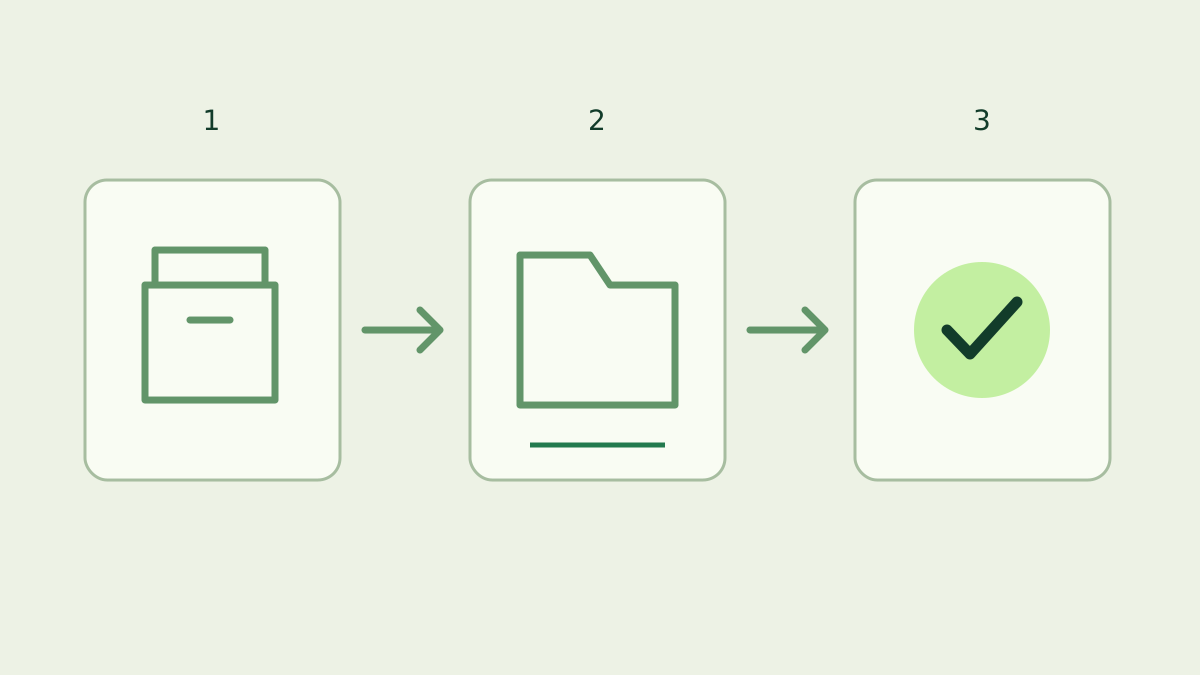
Download and verify the official archive for your operating system, stop the running miner, preserve its data directory and replace the application files. Restart with the same working directory and arguments. Confirm the new version, payout destination, pool connection and accepted shares before updating another machine.
How do you check your current version?
Run the version command against the executable you actually use. An old copy in another folder can give a different answer from the miner launched by a shortcut or service. Record the executable path, working directory and startup arguments together; those three details make the update repeatable. On Windows, open PowerShell in the current miner folder:
.\seine.exe --versionOn Linux or macOS, use the terminal in that folder:
./seine --versionCompare the result with the official releases. Seine checks for a newer release at startup and every 12 hours, showing a notice in the dashboard and log. That notice supplies a download link; installation happens when you choose. Read the release notes for changes that affect your platform, runtime or launch options.
Which settings should you preserve?
By default, seine reads ./seine-data/seine.config.json. The ./ means the current working directory, so moving the executable and launching it from a new folder can also change where it looks for settings. If your command uses --data-dir, keep pointing it at the same directory. An absolute path makes the location explicit when shortcuts, scripts or service managers choose the working directory.
The saved configuration holds connection details such as mining mode, payout address, pool URL and rig name. Keep the whole data directory, including existing tuning files. Also save the startup command, script or service definition: options such as --backend and --threads are separate from those saved connection fields. Retaining both preserves your intended setup across the restart.
Download and verify the replacement
Use the download page or the official release page and select the archive for your operating system and CPU architecture. Download the separate SHA256SUMS.txt asset from the same release. Compare the archive with its matching checksum before extracting it into a separate folder. The download-verification guide explains the Windows checksum procedure and how to handle a download warning.
Keep all files shipped in the archive together. In particular, the Windows package includes NVIDIA runtime libraries beside seine.exe; copying only the executable can leave a mismatched installation. The NVIDIA guide covers runtime setup. The v0.2.36 configuration reference documents the saved configuration and current startup behavior used here.
Stop, back up and replace
Quit the interactive miner with q or Ctrl+C and wait for it to exit. For a managed service, use its service manager and account for any automatic restart policy before replacing files. Make a local backup of the existing application folder and data directory while the miner is stopped. Keep the backup separate from the new extraction so the two versions remain easy to identify.
Place the new application files in the installation location, preserving the original data directory. If you use versioned installation folders, update the shortcut or service executable path and explicitly retain its working directory and data path. Restart one instance with the same startup options. On multiple rigs, complete the checks below on one machine before repeating the procedure elsewhere.
How do you confirm the update worked?
Run the version command again against the installed executable and compare it with the release you downloaded. Launch the miner and check the displayed payout destination, pool and rig name. Confirm that the intended CPU or GPU backends start. Saved tuning information can be reused when compatible; let any startup tuning complete before judging the displayed hashrate. The dashboard guide explains the relevant panels.
Look for accepted shares, then open My Stats for the same payout address. Pool estimates need arriving shares and time to settle, so an immediate hashrate difference alone does not identify an update problem. A new process also starts a new local session. Compare the address, rig and share activity before comparing short-term counters from the old and new runs.
What if setup prompts appear again?
Check the current working directory and --data-dir first. A new extraction folder often has no existing configuration at its relative default path. Stop that instance and point it at your original data directory. If an error names a configuration file, preserve the file and exact message while investigating. Keep wallet seeds, private keys and control API tokens out of screenshots or public reports.
For a launch failure, record the version, operating system, executable path and exact error, then follow the matching platform guide. Your backup preserves the previous application and settings together. Before restoring an older release, check the newer release notes for compatibility requirements. Resume with a known configuration and verify accepted shares again; there is no need to recreate a wallet just to replace the miner application.
Frequently asked questions
Does seine install updates automatically?
The release checker announces a newer version in the dashboard and log. You choose when to download and install it. Download the official archive, verify it, stop the existing miner, replace the application files and restart with the same data directory and launch settings.
Which files keep my mining settings?
The default saved configuration is seine-data/seine.config.json relative to the directory you launch from. A custom data-dir changes that location. Preserve the data directory and your startup script or service configuration: command-line options such as backend and thread choices are separate from the saved connection details.
Why does seine ask for my address again after updating?
First check the working directory and data-dir argument. Launching from a newly extracted folder can point seine at a different configuration location. Stop that instance, find the original data directory and restart with the correct path. Check the saved address and pool before resuming mining.