
Get your Blocknet miner running consistently by identifying the point where it stops. This guide follows seine v0.2.37 and starts with evidence you can collect on your own computer. Keep your last working command and configuration available, then change one relevant setting at a time so the next result tells you something useful.
What should you check when a miner stops?
Check whether the miner process exited, the computer slept, or the pool connection is recovering. Preserve the final message and time before restarting. Match that evidence to startup configuration, memory allocation, GPU initialization or an operating-system event, then verify the corrected launch with fresh accepted shares.
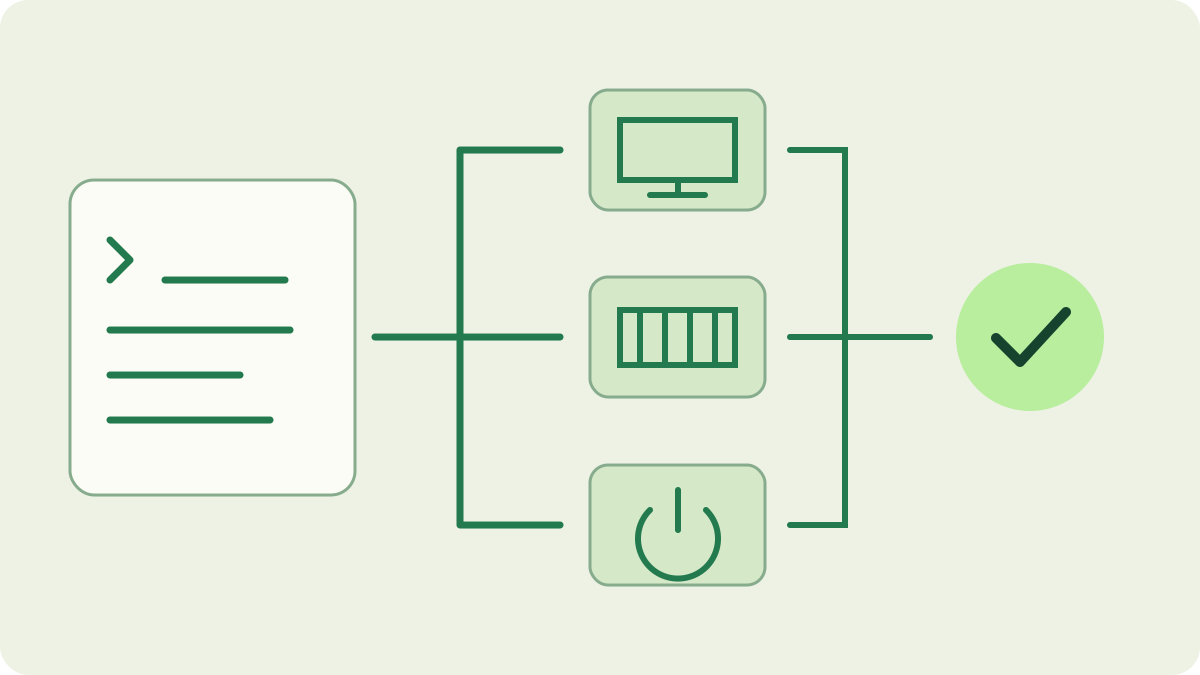
Keep the final message visible
Open a terminal in your normal launch directory and run your existing command there. Add --ui plain if you want plain log output instead of the dashboard, keeping the other arguments unchanged. This starts mining with your existing setup. Copy the final messages, including the first error before any repeated reconnect or shutdown messages.
Record the executable version, working directory and selected data directory together. In this release, a handled fatal error is printed with fatal: before exit. An operating-system termination may leave different evidence. If the process remains alive, follow the pool connection checks rather than treating a missing share or a temporary connection loss as proof of a crash.
Does it stop before mining begins?
Read the named file, option or library in the startup message. A configuration parsing error should lead you to the specific saved file; preserve a copy before correcting its syntax. Check that a shortcut or service uses the intended working directory. The configuration guide explains why the same executable can read different settings when launched from different folders.
If the executable cannot start, confirm the correct archive for your operating system and architecture and use the official release. Follow the download verification guide for a security-product alert. Keep protection enabled while identifying the file and message. If the problem began after an update, compare the executable path and launch arguments with the update procedure.
What if the message mentions memory or pages?
Match the requested CPU thread count to available memory, including other applications and any container limits. An allocation error identifies a resource problem to investigate; it does not by itself prove defective RAM. Close unnecessary workloads or reduce a deliberate thread override, then retry once. Keep notes about which change affected the result and whether mining actually began.
An explicitly required page mode needs the corresponding operating-system reservation. A required huge-page allocation failure and an ordinary-memory shortage are different checks. Use the RAM guide for capacity planning and the huge-pages guide for page setup. Avoid changing several tuning flags together: a simpler known configuration makes the next log easier to interpret.
Check the GPU stage separately
If startup names a CUDA library, device or GPU allocation, record that exact message and the installed driver version. The NVIDIA setup guide covers release requirements, runtime libraries and device selection. Compare those requirements with your installed environment before changing kernel or tuning options. A successful archive download alone does not establish that the runtime is ready.
seine can isolate a backend fault while other active backends continue. Check the backend messages and remaining activity before concluding the whole application stopped. Save evidence before restarting; a new session can hide the previous sequence. If you deliberately test a simpler backend selection, preserve your original command and compare startup, ongoing work and accepted submissions under the changed selection.
Was the computer asleep or restarted?
Compare the stop time with sleep, hibernation, reboot and scheduled-task history. A screen turning off and the computer entering sleep are separate settings. On Windows, inspect the power and sleep settings and check whether the event followed a lid close or a power-source change. Choose settings appropriate to the machine’s intended use and cooling arrangements.
For an unexpected process exit, inspect the operating-system application and system logs near the same time. Windows Event Viewer can associate an application error with its executable. A whole-machine restart needs system-level evidence as well. On a service-managed installation, inspect the service’s exit status and log before enabling repeated restarts that could obscure the original cause.
Verify the fix and keep a useful report
Relaunch through your normal shortcut, terminal or service after the targeted correction. Confirm the destination, active backends and new accepted shares. Observe the condition that previously caused the stop, such as ordinary desktop use or the next scheduled launch, without recreating an unsafe hardware condition. Use the dashboard guide to distinguish current work from accumulated session statistics.
If the stop repeats, collect a concise report: version, operating system, hardware, available memory, exact launch options, time and final messages. Include what changed and whether the whole process exited or one backend stopped. Remove credentials and personal data from logs; never share a wallet seed or private keys. Preserve the working configuration and avoid guessing a cause from hashrate alone.
Frequently asked questions
Is a disconnected miner always a crashed miner?
A lost pool connection can leave the miner process running while it reconnects. Check whether the process still exists, read its latest messages and look for fresh accepted shares after reconnection. A closed application or an operating-system crash report points to a different investigation.
Should I delete the configuration when seine stops?
Keep the existing configuration and record its location before changing anything. A parsing message identifies a particular file or value to inspect. Back up that file, correct the reported issue and preserve the address and launcher settings. Deleting everything makes comparison with the last working run harder.
What information helps diagnose a repeated stop?
Record the seine version, operating system, CPU and GPU, available memory, complete launch arguments, working directory and time of the stop. Include the last log messages and relevant operating-system events. Remove credentials and personal data before sharing, and never include wallet recovery phrases or private keys.