
Find out which reading changed before adjusting a miner that is still running. This guide helps you separate a display-window difference from a device, workload or resource change, then test the likely cause with a repeatable comparison. Keep your working launch configuration while you investigate so each observation has a known starting point.
Why can mining hashrate fall during a session?
Hashrate can change when the active devices, CPU thread count, available memory, competing workload or hardware clocks change. A displayed drop can also come from comparing different averaging windows. Start with the same device and measurement interval, check fresh work and logs, then change one condition and observe the result.
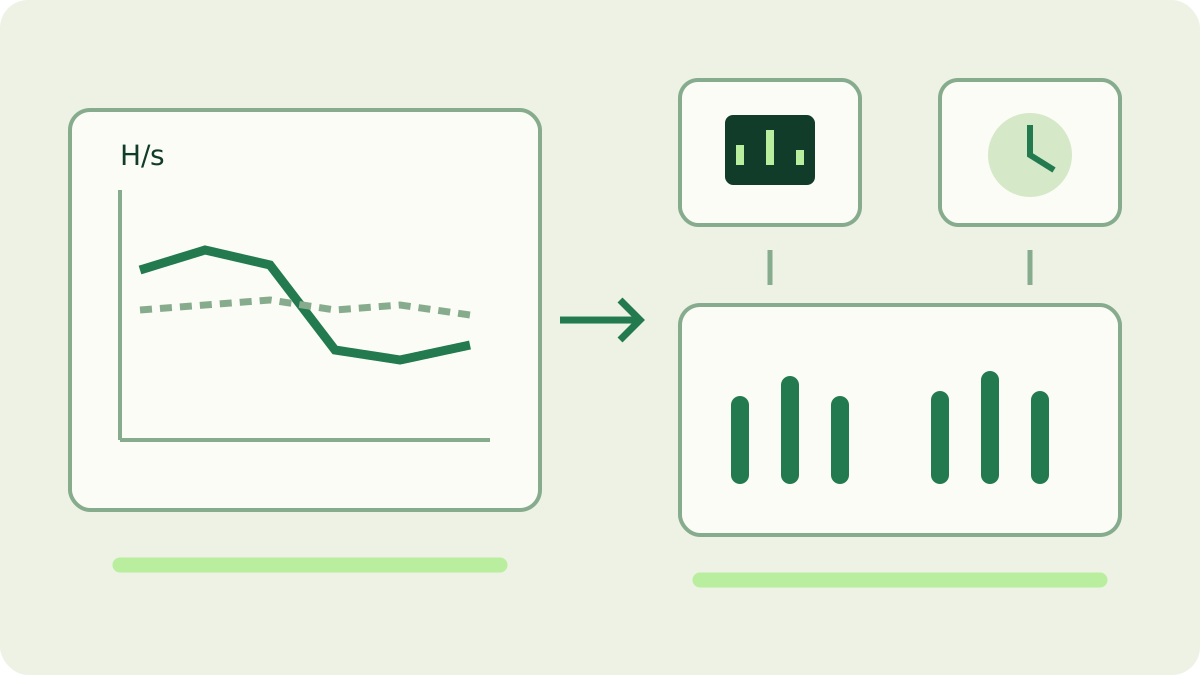
First identify the reading that fell
Write down where you saw the change: current local hashrate, session average, one device row or the pool estimate. These are different observations. In seine, current and average values use different time horizons, and device reporting can arrive in batches. The dashboard guide explains the fields; compare a field with its own earlier value before treating two labels as interchangeable.
Keep the unit and the observation interval beside each number. A value in H/s and a value in kH/s need conversion before comparison. Record whether the miner has just started, restarted a backend or resumed work. A fresh session has a different history from a long-running average, so one early peak is a poor baseline for the rest of the evening.
Is the change local, pool-side or limited to one device?
Check the per-device rows and fresh accepted-share messages. If one device contributes less while the others stay steady, investigate that device first. If local work stays comparable but the pool estimate changes, follow the share and connection evidence. The hashrate explainer covers why a share-based pool estimate can differ from local computation.
Confirm the receiving address and rig name when opening pool statistics. Several machines under one address can make an account total unsuitable for comparison with a single computer. Use the miner tracking guide for the correct view. If the process has exited or a backend reports a fault, switch to the stopping guide; this article assumes you can still inspect a running session.
Read tuning and thread-count changes in context
seine compares CPU thread counts and kernel choices while mining, and it can reuse compatible saved results. Those comparisons can change the active configuration during a session. Read nearby tuning messages and note the active count before diagnosing a drop. The autotuning guide explains the search and its overrides; a count change alone does not establish a regression.
Check whether your launch now selects the same backends and settings as the earlier run. A different shortcut, working directory or saved configuration can change the comparison before hardware enters the picture. Keep a copy of the working command, then use the configuration guide to check which values actually apply. Avoid deleting the tuning cache simply because one reading moved.
Check competing work and available memory
Use your operating system’s process and memory view to see what else changed at the same time. A game, video task, build or another compute job may share the processor, graphics card or memory resources. Compare with that optional task paused or finished when convenient. Keep the desktop workload consistent; otherwise the next reading answers a different question.
seine’s automatic CPU management considers available memory and can reduce active threads when resources tighten. Some operating systems also provide pressure signals. Check the log and available memory together rather than forcing the previous count back immediately. The RAM planning guide covers allocation requirements. If performance returns when another workload ends, record that relationship before changing persistent settings.
Could temperature or power behavior explain the change?
Temperature and clocks can help explain a sustained local change when the workload and active devices are otherwise comparable. Intel documents thermal throttling as a protective reduction in CPU clock speed. Use your processor or computer manufacturer’s guidance for that exact model; there is no single temperature threshold that diagnoses every mining computer.
For an NVIDIA device, the NVIDIA monitoring documentation distinguishes clock-event reasons, including thermal and power constraints, and marks unavailable data. Record supported readings alongside the hashrate observation. Also note a switch between battery and external power or a changed system power mode. Follow manufacturer cooling guidance and keep protective controls enabled; this procedure does not require changing voltage or clock limits.
Make one comparison that can answer the question
Choose one suspected condition, such as a competing application, and compare otherwise matched intervals before and after it changes. Keep the miner version, backends, thread policy, power source and foreground activity in the record. Allow startup and tuning activity to be identified separately. Repeat the observation if normal fluctuations make the outcome unclear, without assigning a cause from a single point.
For a deliberate performance experiment, use the benchmark guide and its matched-workload approach. Keep benchmark results separate from pool reward samples: block arrival and share variation affect the latter. A lower electricity reading also answers a different question; the electricity guide pairs energy with completed work so that an idle device is not mistaken for a useful improvement.
Verify the result and save the useful evidence
After the targeted change, confirm the intended devices are hashing, the count is understood and fresh shares are accepted. Compare the same field across representative intervals. Save the result even when it shows no meaningful difference; that prevents repeating an unhelpful adjustment. Restore an unrelated change instead of letting several unexplained settings accumulate.
If the pattern persists, collect the miner version, operating system, hardware, launch settings, relevant log times and paired readings. Include what stayed constant and what changed, plus whether the drop affected one device or the whole miner. Remove credentials and personal information before sharing. A compact timeline gives a support investigation more useful evidence than a screenshot of one low number.
Frequently asked questions
Why is my pool hashrate lower than the miner reading?
The miner counts local hashing, while the pool estimates work from submitted shares over its own window. Compare the same rig and a representative interval, then check recent accepted shares and connection messages. A short difference alone does not identify a hardware slowdown.
Does a lower CPU thread count mean something is wrong?
Not by itself. Automatic tuning compares thread counts and code paths, while memory availability can limit the active count. Check the tuning messages, available memory and per-device hashrate together. Record what changed before deciding whether a lower count needs any intervention.
Should I change several mining settings to recover hashrate?
Start with a comparable baseline and change one relevant condition at a time. Keep the version, devices, workload and observation interval recorded. Verify sustained hashing and fresh accepted shares afterward; a single higher current reading is not enough to establish that a change helped.