
Update the Blocknet desktop application while keeping the wallet you already use. The sequence is straightforward: identify the release, save a separate backup, quit the application, install the matching download, and reopen the same wallet. Finish by checking its receiving address and synchronized balance. This guide covers a routine desktop application update on the current chain.
How do I update my Blocknet wallet?
Download the matching package from the official Blocknet desktop wallet releases. Before installing it, back up your existing wallet and fully quit the application. Keep its saved wallet data when replacing the app. Reopen the same wallet, compare its receiving address, and let synchronization and scanning finish before checking your spendable balance.
Check the release before downloading
Open the official desktop wallet releases and read the release notes. Choose the package for your operating system and processor. The screenshots in this guide use desktop wallet v0.22.0, the latest release checked on October 27, 2026. Later releases may change the available packages or update steps; follow their notes when they do.
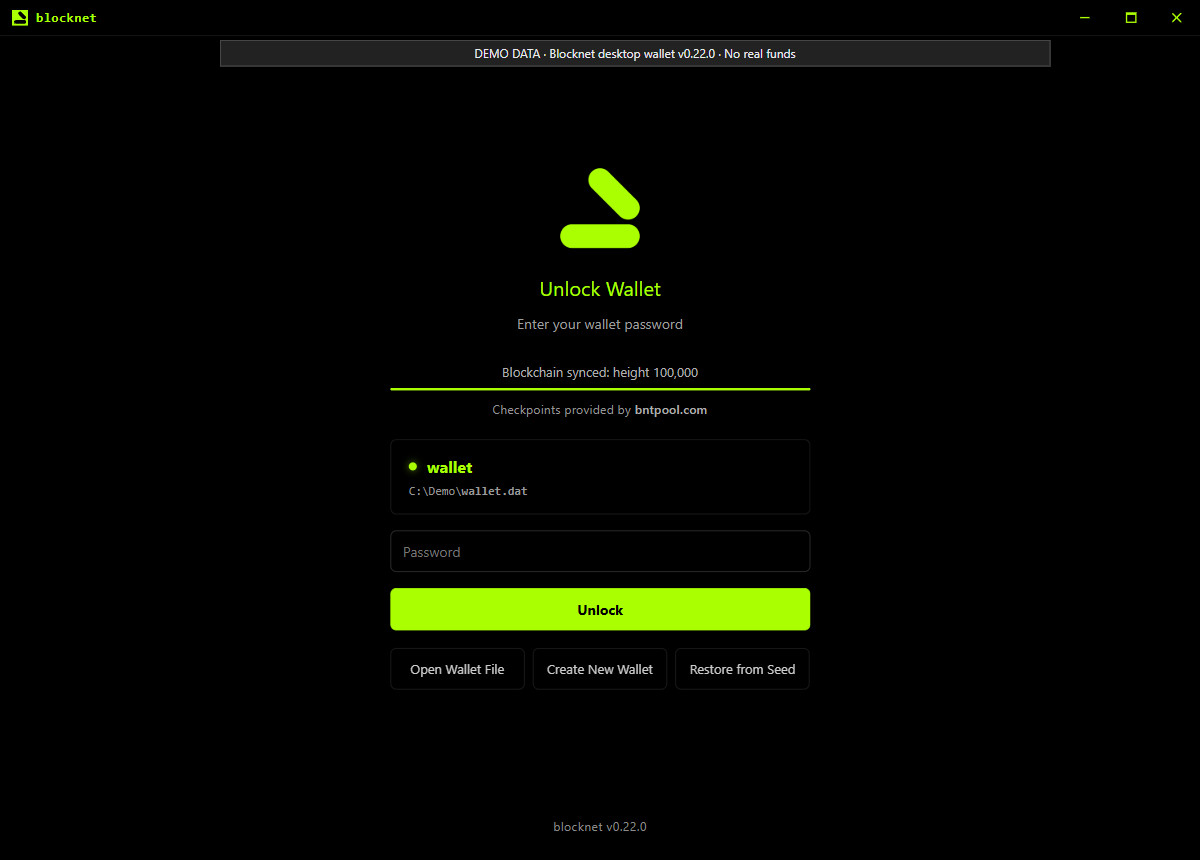
The application version appears on the opening screen. You can also find Wallet Version and Daemon Version under Settings → About. In v0.22.0, both About fields read the bundled daemon version, so use the opening-screen application version when comparing the desktop app with its release tag. The screenshot below uses the released frontend with labeled local demo data.
What should I save before updating?
Open the wallet you normally use. Under Receive, copy Your Address into a record you can compare after the update. If you keep several wallets, record which file or wallet name belongs to that address. This makes it easier to recognize the same wallet when you reopen the application.
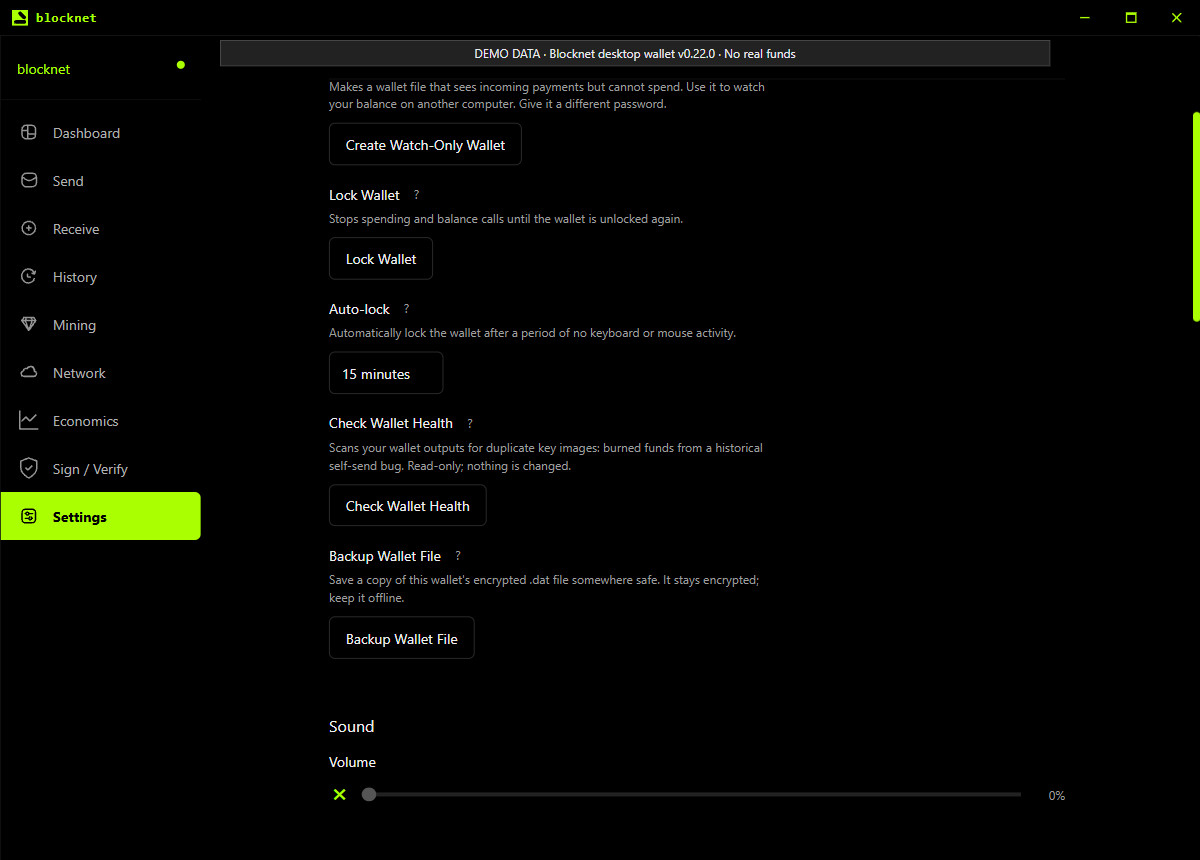
In Settings, use Backup Wallet File and save the copy separately from the application you are replacing. Confirm that the backup file exists at the location you selected. It remains encrypted, so retain its password. Keep your recovery words in your existing private backup as well. The wallet backup and restore guide explains the difference between loading an encrypted file and restoring from recovery words.
The backup control copies the active wallet file. Repeat the backup for each wallet you want to preserve. A routine software update does not require sharing your password or recovery words with a website, release page or support contact.
Fully quit the application
Use Quit from the Blocknet tray or menu-bar icon before installing the replacement. In v0.22.0 this stops the application’s bundled node before exiting. On macOS, closing the window hides it while the application continues running; choose Quit to finish.
A separate seine instance mining through bntpool.com can keep using the same public payout address while the receiving wallet is closed. If you mine directly against the node you are stopping, that connection needs the node to return. The wallet, node and miner guide explains which application each setup needs.
Install the package for your computer
For Windows, use the Windows installer from the official release and complete its prompts. For macOS, choose the download for your processor: v0.22.0 provides a disk image for Apple Silicon and an application archive for Intel Macs. Open the downloaded image or extract the archive, then replace the installed Blocknet application with the new application.
On Linux, keep the package format you already use where possible. Install the newer DEB or RPM through your package manager, or replace your AppImage with the downloaded version and give it execute permission if needed. Check that your launcher points to the new AppImage. If you use Flatpak, follow the release’s instructions for that package.
Keep your existing wallet files and application data. Replacing the application does not call for deleting the data directory, resetting the wallet, or creating a fresh wallet. If an installer asks about removing saved data, keep it. Follow any release-specific migration instructions before continuing.
The release includes SHA256SUMS.txt for checking downloaded files. Compare the SHA-256 hash of your package with the entry for that exact filename in the same release. The official desktop wallet README shows platform-specific verification commands. A matching hash confirms that your download matches that checksum; obtain both from the official release.
How do I check that the update worked?
Launch the newly installed application and check its opening-screen version. Select your existing wallet and unlock it with its password. Open Receive and compare the full Your Address value with the one you saved before updating. Matching the address confirms that you returned to the intended receiving destination.
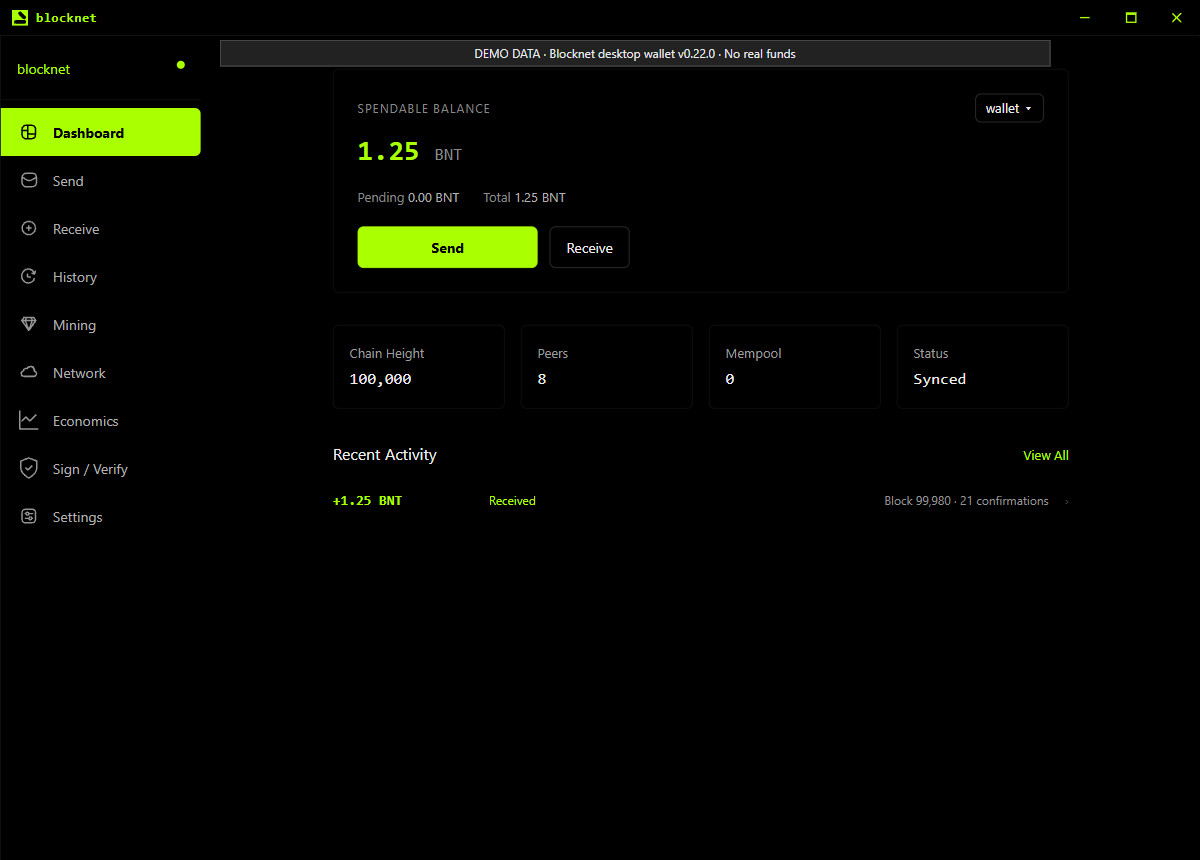
Next, open Dashboard. Let the node synchronize and the wallet finish scanning. Check Spendable Balance, Pending and Total, and look in History for recent incoming or outgoing transactions you recognize. The final balance may include payments received while the application was closed; compare the transaction history as well as the total.
The example below shows the released dashboard with an illustrative 1.25 BNT balance. The address, chain readings and amounts are demo data. Use your own saved address and transaction records for the actual check.
If the expected wallet or balance is missing
If the application opens its new-wallet screen, first locate your existing wallet file or separate backup. Use the backup and restore walkthrough to open the intended file. Creating a new wallet produces a different address and does not bring the previous wallet’s funds into that new destination.
If the address matches but the displayed balance has not caught up, follow the wallet synchronization checks. They separate node download, wallet scanning and payment state so you can see what still needs to complete. When your address and transaction history match and synchronization has finished, the routine update is complete. Keep the backup for future recovery.
This procedure covers released desktop software. The Faraday upgrade guide separately tracks the announced future migration; use its official release instructions when that transition becomes available.
Frequently asked questions
Do I need to create a new wallet after updating?
A routine application update uses your existing wallet. Open the same wallet file and unlock it with its password, then compare the receiving address with your saved record. Creating a new wallet gives you a different destination. If your existing wallet is not listed, use the backup and restore guide.
Does updating the wallet stop my pool miner?
A separate seine instance connected to bntpool.com uses your public payout address and can keep running while you update the receiving wallet. Direct mining depends on its node, so stopping that node interrupts that connection. Check which application your miner connects to before closing a node it uses.
Why does my balance need time to appear after an update?
After reopening, the node may need to download newer blocks and the wallet may need to scan them for your payments. Check the selected wallet and its receiving address first, then follow synchronization and scanning progress. Use the spendable balance once those steps finish; an early display is not the final check.