
This walkthrough takes you from opening the Blocknet desktop wallet to receiving a payment, reviewing a send and finding the transaction afterward. The screenshots use the released desktop interface with labeled demo data. Addresses, balances, block heights and fees shown are illustrations; use the values in your own wallet when following the steps.
How do I start using the Blocknet desktop wallet?
Download the official desktop wallet for your computer, create a wallet or open an existing one, and protect its recovery information. Let the node synchronize and the wallet scan, then use Receive for your address, Send to review a payment, and History to check the transaction afterward.
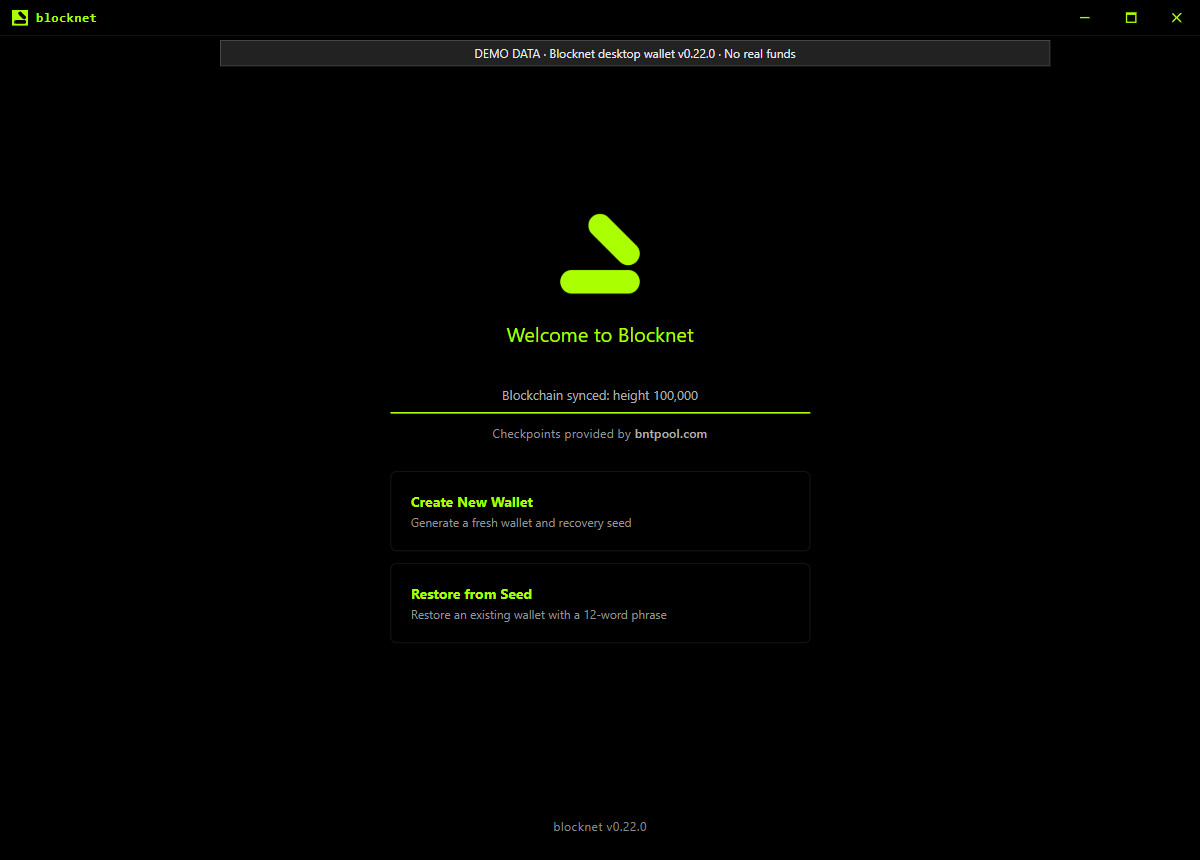
Download the desktop application for your computer
Open the official desktop wallet releases and choose the package for your operating system and processor. The reviewed release provides Windows and Linux packages for x86-64 computers, plus separate macOS packages for Apple silicon and Intel Macs. Install and open the application on the trusted computer where you intend to manage your wallet. You can use the desktop interface without entering terminal commands.
This guide follows desktop wallet v0.22.0. The captures render that release’s actual interface with controlled sample responses, rather than a live funded wallet. The desktop application starts its bundled node; allow it to connect and synchronize. If you are deciding which application belongs on which computer, the wallet, node and miner guide explains their separate jobs.
How do I create or open a wallet?
On a fresh installation, choose Create New Wallet. Enter a new wallet password, repeat it in the confirmation field and select Create Wallet. Keep that password somewhere protected and retrievable. The next step asks you to save and confirm recovery words. Complete that step before treating setup as finished; the password and recovery words serve different purposes.
For a wallet already listed by the application, select the correct wallet and use its password to unlock it. The unlock screen also offers Open Wallet File for an existing file and Restore from Seed for recovery words. Creating a new wallet makes a new destination; use the existing-wallet or recovery route when you want access to your previous funds. See the backup and restore guide before recovering a wallet.
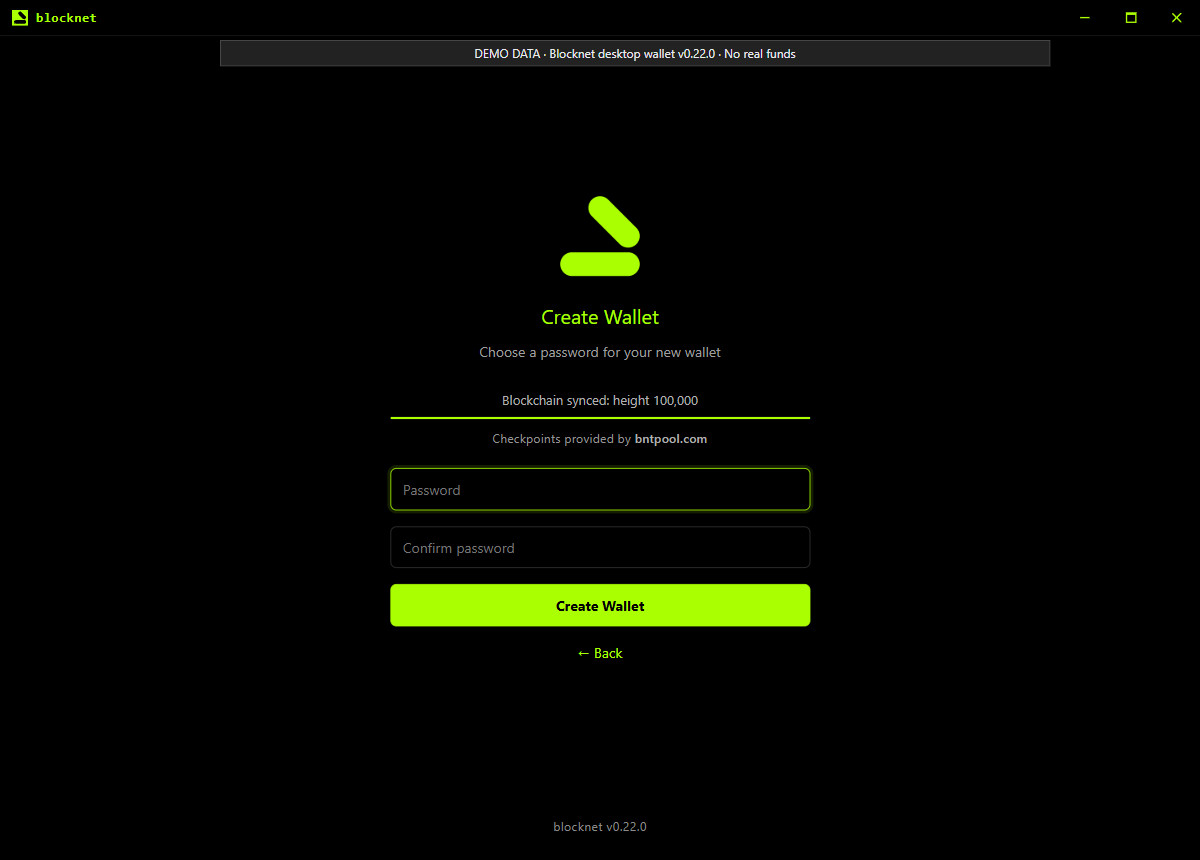
Save recovery information before using the wallet
For a newly created wallet in the reviewed release, the setup flow displays a 12-word recovery phrase. Write the words down in order and keep them offline in a protected place. Select I've written it down, then enter the requested words to confirm your record. Do not put real recovery words in screenshots, support messages or a mining configuration. Anyone helping with a receiving address does not need those words.
The password protects access to the encrypted wallet file; the recovery phrase can recreate the wallet’s keys. Keep both available to you. Under Settings, Backup Wallet File saves a copy of the current encrypted .dat file to a location you choose. Protect that copy and retain its password. The recovery-word guide explains the distinction in more detail. This article deliberately shows no recovery phrase.
Check synchronization and the spendable balance
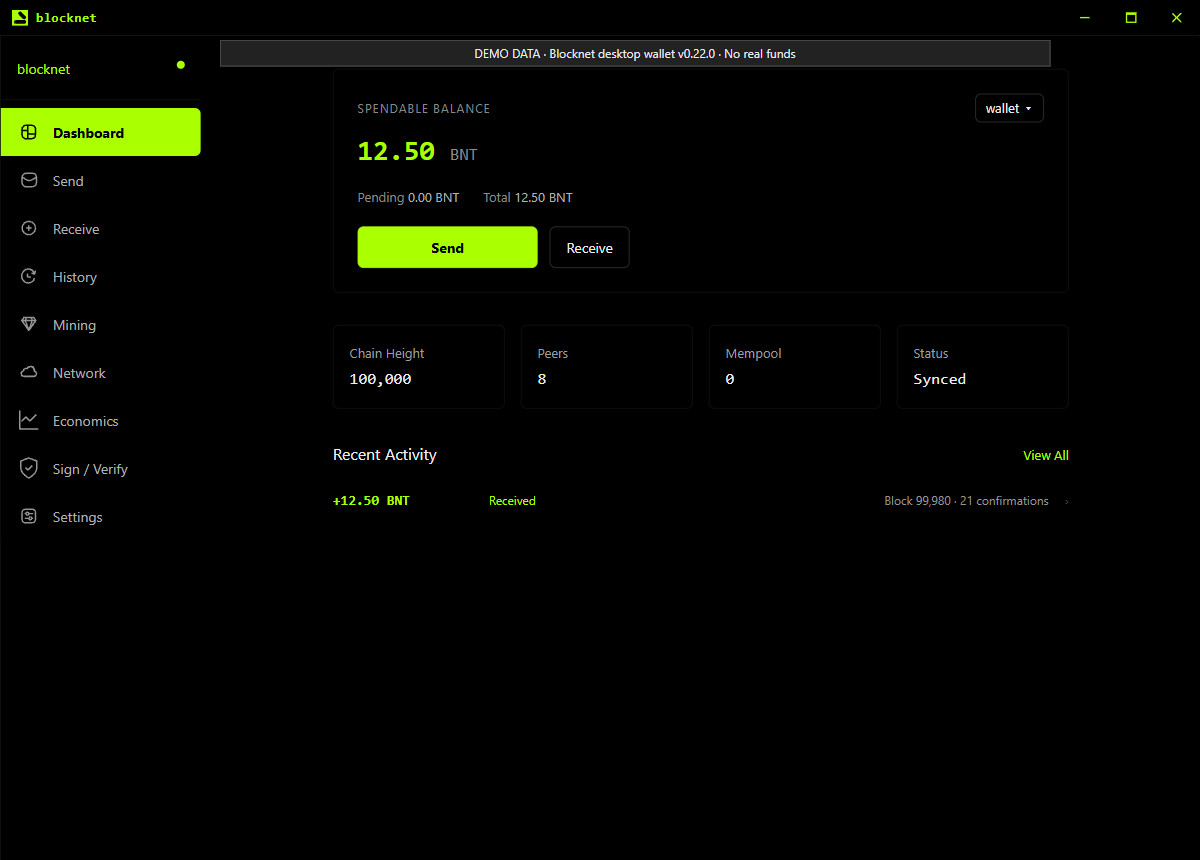
Open Dashboard and check the chain status. Syncing means the node is still catching up with the blockchain. The wallet can also show scanning progress while it reads blocks for your outputs. Allow both processes to finish before deciding whether an expected payment is missing. The wallet synchronization guide walks through the readings to inspect if progress needs attention.
When the wallet is ready, distinguish Spendable Balance from Pending and Total. Prepare payments using the spendable amount and leave room for the network fee shown during review. A newly created wallet starts without funds; creating it does not generate a balance. The example below shows a sample wallet after a received payment has become spendable.
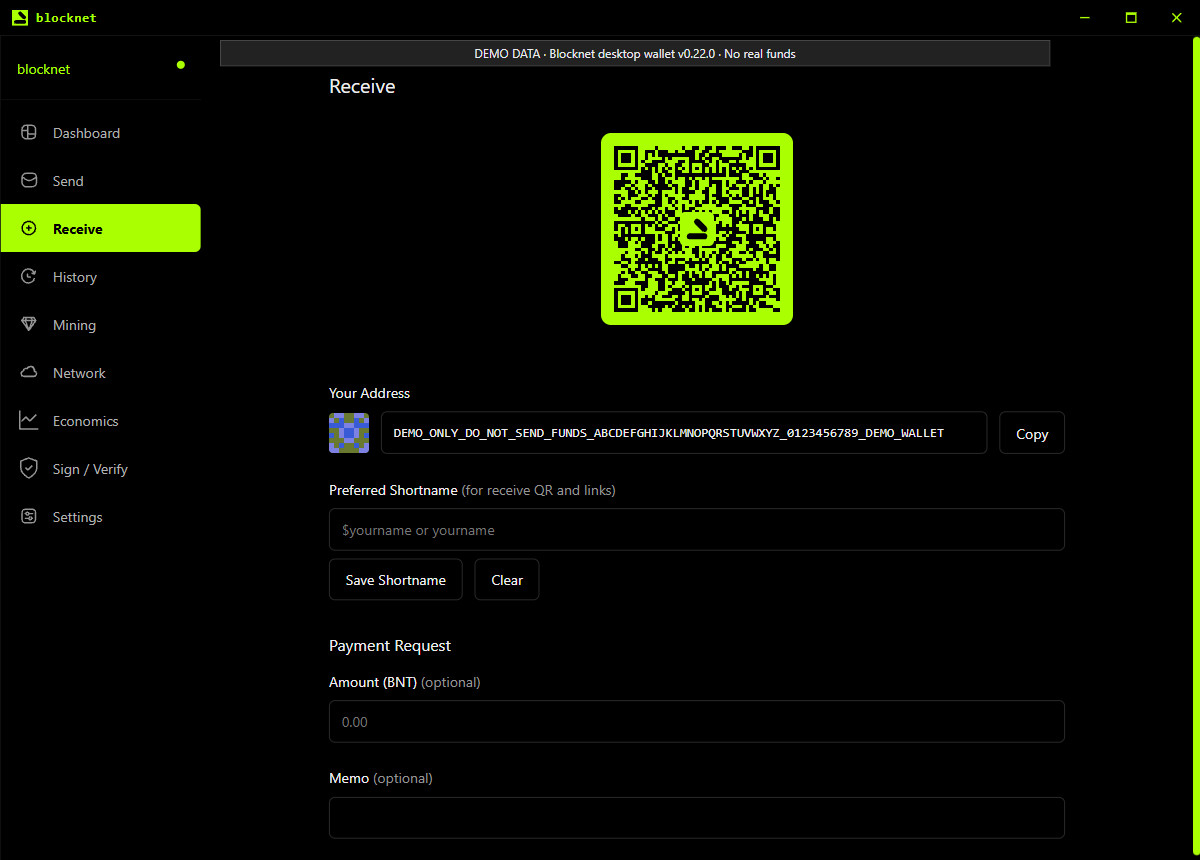
Where do I find the address for receiving Blocknet?
Select Receive in the sidebar. Under Your Address, use Copy to copy the current wallet’s receiving address. Compare the copied value with the address shown before sharing it. The screen also displays a QR code for the receiving destination. Use your own address; the address and QR code in this article are deliberately non-payment demo values.
For a first receipt, sharing the copied address is enough. You can leave the optional shortname and payment-request fields alone. The sender needs your public destination, while your password, recovery words and wallet file stay with you. If you have multiple wallets, check which one is open before copying its address. The sending and receiving guide covers the broader payment workflow.
Review a payment before selecting Confirm Send
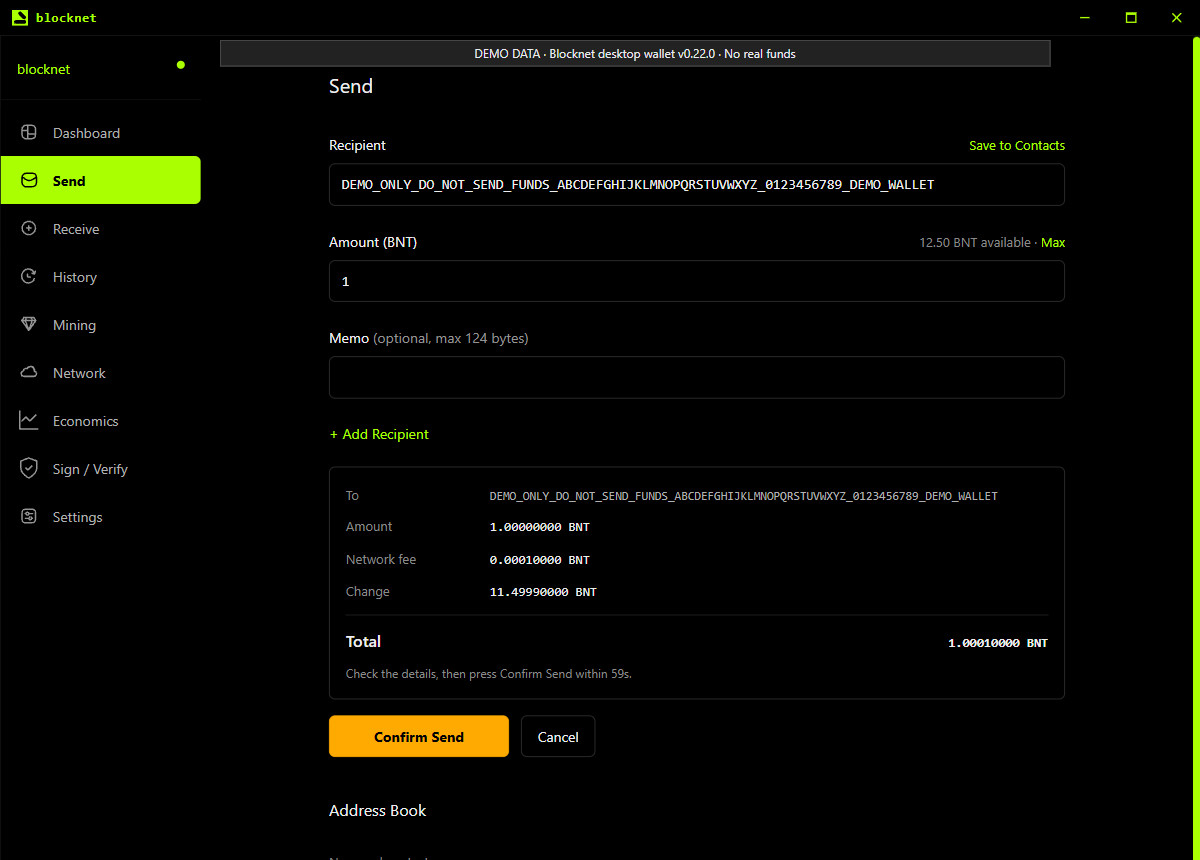
Select Send, paste the recipient’s destination and enter the amount in BNT. A memo is optional. Select Send to request the fee preview and open the confirmation card. In this reviewed release, that first step prepares the review; the button then becomes Confirm Send. Read the full recipient address, amount, network fee and total before deciding to continue.
The displayed fee belongs to that preview, and the fee in the screenshot is illustrative. For the calculation behind it, see Blocknet transaction fees. Select Cancel if the details need changing. The confirmation has a timer; if it expires, select Send again to obtain a fresh review. Select Confirm Send only when you intend to authorize that payment.
Find the payment in History
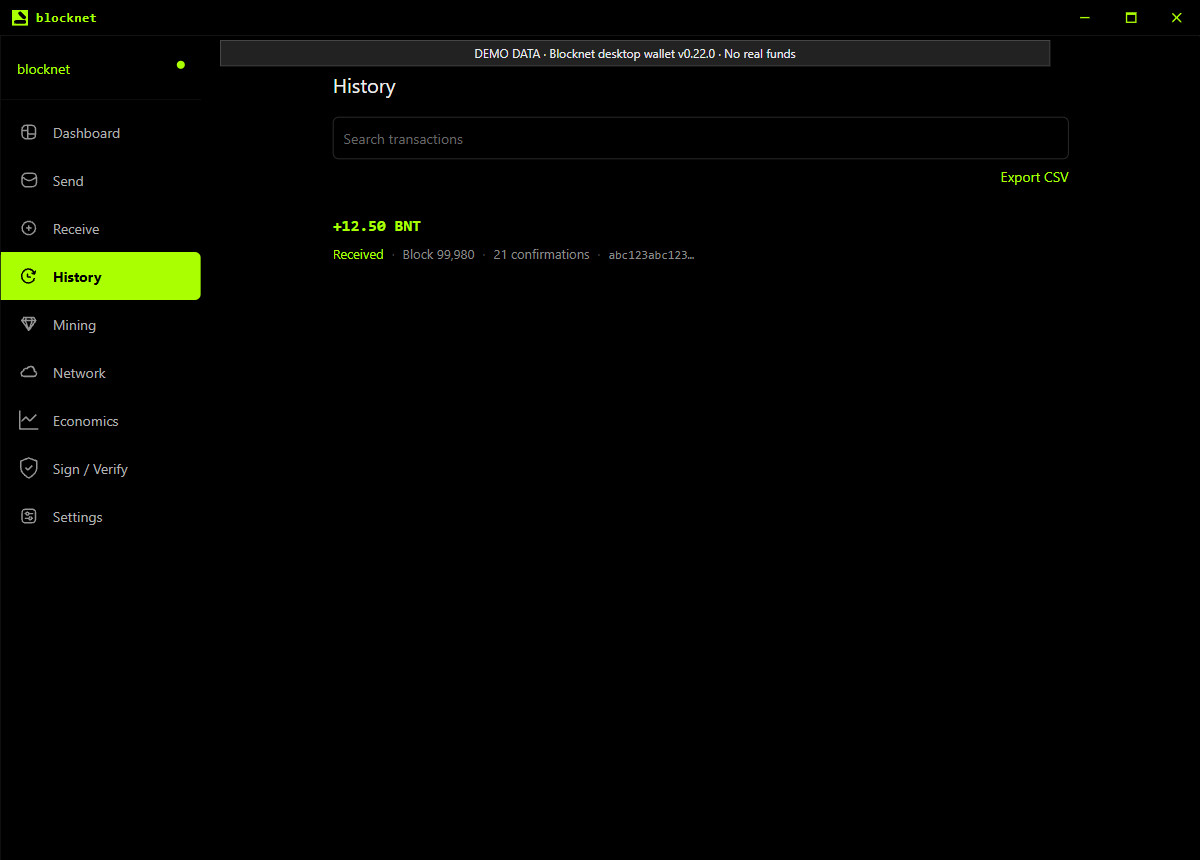
Open History to find received and sent transactions. Select an entry to inspect its transaction hash, status, block and confirmations. Use the search field to locate a transaction as the list grows. A pending transaction and a confirmed one are different states; check the actual record when following up on a payment instead of submitting it again just because you are unsure.
Keep the transaction hash when checking a payment with the sender or recipient. The explorer guide explains what a public transaction lookup can show, while the wallet provides the details belonging to your keys. Once receiving and backup are familiar, you can use the same public destination for pool mining with seine. You can also keep using the wallet for payments without starting mining.
Frequently asked questions
Do I need to mine to use the Blocknet desktop wallet?
You can create a wallet, receive Blocknet and send payments without starting mining. The desktop application runs its node connection for blockchain synchronization and wallet scanning. Mining is a separate activity. If you later choose pool mining with seine, use your public receiving address as the payout destination.
Where do I find my Blocknet receiving address?
Open the wallet you want to receive into, select Receive in the sidebar and copy the value under Your Address. Check the copied destination against the wallet before sharing it. The address is public payment information; receiving a payment does not require sharing your recovery words, password or wallet file.
Why is my Blocknet wallet balance still updating?
The node may still be synchronizing the blockchain, or the wallet may still be scanning downloaded blocks for its own funds. Check the Dashboard status and scanning progress before judging the balance. Pending funds and spendable funds are also separate readings; use the wallet’s spendable balance when preparing a payment.